
English
Desktop client
A window and a tray icon on Linux, Windows or macOS make up the desktop client. It opens the web pages, ports, AI gateway, shares, terminals and remote desktops of every hub the computer joined. The client connects only to each hub's port 8443. Install a client covers installing it and joining a hub, and nclient commands does the same work in a terminal.
Hubs
The window, titled Neutrino client, has a sidebar with Hubs, Web, Ports, AI, Files, Terminals and Remote desktops, then Settings under a rule. The Hubs page holds one row per hub: its name, its state line, its address and the package it runs.
The ↻ button at the top right refreshes every hub, and each row reads Refreshing… until the hub's new state arrives. For a hub that is not connected, a refresh starts a new connection attempt at once. A row reading Replaced by another client or Disabled by the hub stays as it is.
The state line
Under the hub's name, one line shows the connection. While the channel to the hub is open, it names the path the channel took and the last round trip, as in Connected · LAN · 12 ms:
| Path | The client reached the hub at |
|---|---|
| LAN | the hub's address on a network this computer is on |
| Direct | one of the hub's own addresses, from outside the networks it serves |
| NetBird | the hub's NetBird address |
| EasyTier | the hub's EasyTier address |
| SSH Relay | the public port of the hub's SSH Relay server |

The line reads Connecting… while the client dials the hub. When it stops, the line names the reason, then · and what ends the wait, such as The hub did not answer · retrying in 5 s. The seconds count down live, and at 0 the line reads Connecting… again. The wait starts at 5 seconds and doubles up to 60, and a connection or a network change sets it back to 5.
The other reasons are The hub is not on the virtual network, No network, Certificate mismatch, The hub pauses new devices, The hub does not know this device, Version too old, Join refused, Replaced by another client and Disabled by the hub. The state line of a hub row in troubleshooting gives each one's cause and what to do. The channel describes how the client picks among the hub's addresses.
The dot before the name is green while connected and pulsing amber while dialling or busy. It is amber while the next step is up to the network or the hub, and red when you must act. It is grey for a hub this computer has never reached.
Row buttons
| Button | Shown | What it does |
|---|---|---|
| Panel | when the client's permission on the hub's Clients page includes Hub panel without the password | reads Opening…, then opens the hub's panel in your browser, signed in |
| Reconnect | on a row reading Replaced by another client | takes the hub back from the other client and connects |
| Leave | always | reads Press again to leave; a second press within five seconds leaves the hub |
Panel opens the panel through a forward on this computer, so the panel's own ports can stay on the LAN. The forward stays until you leave the hub or quit the client.
Leaving removes the row at once, whether the hub is reachable or not. It ends the hub's forwards, mounts and viewers on this computer, and a virtual network no other hub uses.
Virtual network
A row has a Virtual network line when the hub publishes NetBird or EasyTier and the client's permission includes the virtual network. The line follows the network alone; the state line above it follows the channel.
| The line reads | Meaning | The button |
|---|---|---|
| Not connected | this computer is off the network | Connect |
| Connecting…, with Logging in to NetBird under it | the engine starts and logs in, for 90 seconds at most | Cancel |
| Connected · and this computer's address | the engine runs and has given this computer an address | Disconnect |
In EasyTier's console mode, the line stays at Connecting… after the login, with the reason This machine is registered with the console. Attach it to a network there. It stays until the console's owner attaches the computer, or until you select Cancel.
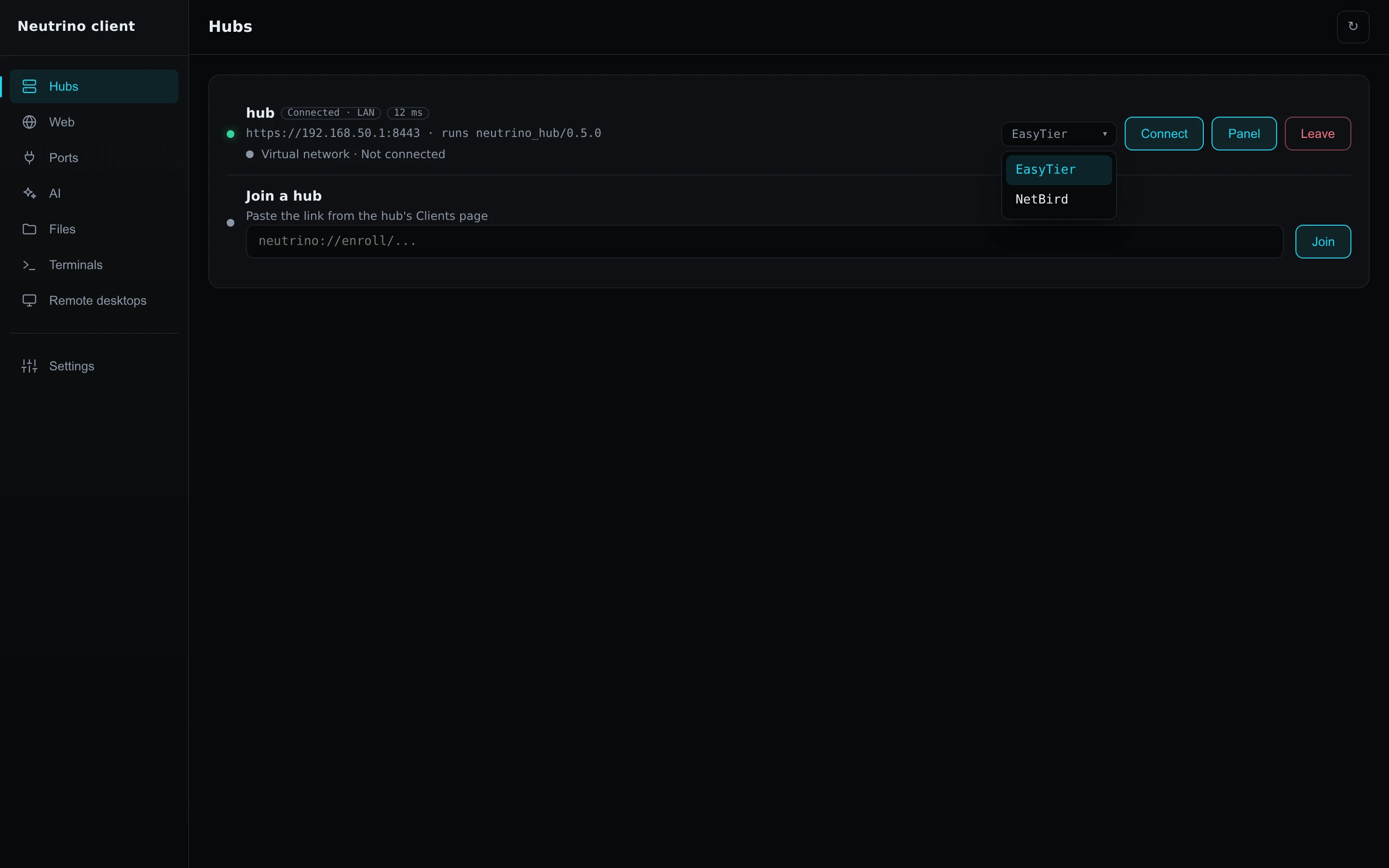
When the hub publishes both engines, a picker beside the button names the engine to use; it changes only while the line reads Not connected. The NetBird and EasyTier daemons are system services, so the computer stays on the network after the client quits. A computer that was connected when the client quit connects one more time when the client starts.
A failure returns the line to Not connected with a code under it, and the client tries no second time by itself. The codes are under The virtual network does not connect.
One client per computer
The virtual network, the files adapter and the local ports belong to the computer, so one person's client runs on it at a time. While one account's client runs, nclient gui under another account exits with no window, and every other nclient command there exits with status 1. The computer is free again after the running client quits or crashes, or its session ends.
Forwards
A forward is a port on 127.0.0.1 that the client opens for one entry and connects through the hub to the service. A forwarded row shows → 127.0.0.1: and the port.
| Page | The forward listens |
|---|---|
| Web | from Open until Disconnect |
| Ports | from Connect until Disconnect |
| AI | while the client runs and the tools point at that hub |
| Files | on Linux and macOS, from Mount until the share is unmounted |
| Remote desktops | from Connect until the viewer closes |
Every program and every account on this computer can connect to a forward while it listens. Quitting the client ends every forward.
On the Web and Ports pages, Configure on a row opens the Local port choice:
- Auto takes the entry's own port when nothing on this computer listens on it for that protocol, and otherwise the first free port from 20000 up. The client keeps that port for the entry, also after a restart.
- Fixed takes the number you type, from 1024 to 65535. A number another entry of the same protocol holds is rejected with Another entry holds port and the number.
Configure is greyed while the entry is forwarded. A row whose forward cannot reach its service shows a code, listed under A client page cannot reach its service.
Web
The Web page lists every web address the joined hubs publish: Gitea, VS Code, code-server, CloudCLI, Codeg, and addresses declared on a hub's Services page. The line under each address names the hub, the machine and the module, such as from hub:server:Gitea.
- Select Open on the entry. The button reads Opening…, the client makes the entry's forward, and the page opens in your browser.
Disconnect ends the forward. The browser opens a name under .localhost with the local port, so two instances keep their logins apart. On macOS it opens 127.0.0.1, because Safari resolves no .localhost name. A VS Code, code-server or CloudCLI entry opens with a token, as Token entries describes. An entry the hub cannot reach is greyed and reads Not reachable now.
Ports
The Ports page relays a port a hub publishes to this computer's loopback address. An entry is a container's host port, or a TCP or UDP port declared on the hub's Services page.
- Select Connect on the entry.
The button reads Forwarding…, then Disconnect, and the row adds → 127.0.0.1: with the local port. Point any program on this computer at that address. A UDP entry reads host:port/udp and suits small question-and-answer traffic, as UDP ports explains.
AI
The AI page points Claude Code, Codex and Gemini CLI on this computer at one hub's AI gateway. Each hub with a gateway has one entry, with Configure and a The AI tools use this gateway switch, and at most one switch is on.
Select the switch on the gateway you want. The entry reads Switching tools…, then The tools point at the hub, and the switch that was on turns off. The bundled cc-switch rewrites each tool's configuration with this client's key, and a failure in one tool leaves all three unchanged. Turning the switch off restores each tool's configuration from before.
The tools reach the gateway only while the client runs, so keep it in the tray while you use them. The switch works only on a connected hub; a refusal is listed under An AI tool ignores the gateway.
To choose the models:
- Select Configure on the entry. The AI tool configuration dialog opens.
- Under Claude Code, pick the Default model, Opus slot, Sonnet slot and Haiku slot.
- Under Codex, pick the Model and the Reasoning effort.
- Under Gemini, pick the Model.
- Select Save.
Each picker also offers gateway default and the hub's own models. On the gateway in use, Save rewrites the tools at once; on another gateway, the choice applies when you switch to it.
When the Neutrino agent is also installed on this computer, the agent sets the AI tools, and the switch and Configure are greyed with the reason This is a managed device: set its AI tools on the hub's panel, under Modules, Global configuration. The hub's side is on AI tools.
Files
The Files page mounts an SMB share a hub publishes. Linux mounts it in a folder under your home, macOS as a volume in the Finder, and Windows on a drive letter. An entry is a share of the file share module on a managed machine, or a share declared on the hub's Services page.
To mount a share:
- Select Configure on the entry. A form opens under the row.
- Type the Share username and Share password the share accepts.
- On Linux, keep or change the Mount path, a folder under your home such as
~/nas/media. On Windows, pick the Drive. On macOS, skip this step. - Select Save.
- Select Mount. The button reads Mounting…, then Unmount.

The client keeps the login in a credentials file only your account reads, so the next Mount reuses it. Unmount detaches the share and keeps the login.
| System | The mount |
|---|---|
| Linux | the client's mount helper runs under pkexec and mounts the share from the forward's port; in a local desktop session, polkit authorizes it without a password |
| macOS | the system mounts the volume from the forward, as the Finder's Connect to Server does; the first mount shows a dialog to confirm the server, and the row names the mount point under /Volumes |
| Windows | the files adapter gives each machine that provides a share its own address, from 198.19.255.2 up, and Windows maps the drive to that address |
On Windows the adapter is a network adapter named neutrino_files, run by the NeutrinoClientFiles service. It sends only the shares' connections to the hub and serves one account at a time.

A mount that fails shows a code on the row, listed under A share does not mount on a computer.
Terminals
The Terminals page opens a shell on a machine a hub manages, in a tab of the window. The client's permission on the hub's Clients page must include terminals. A script runs one command on a machine with nclient terminal exec, which needs Remote commands in the same permission. Its flags are on nclient commands.
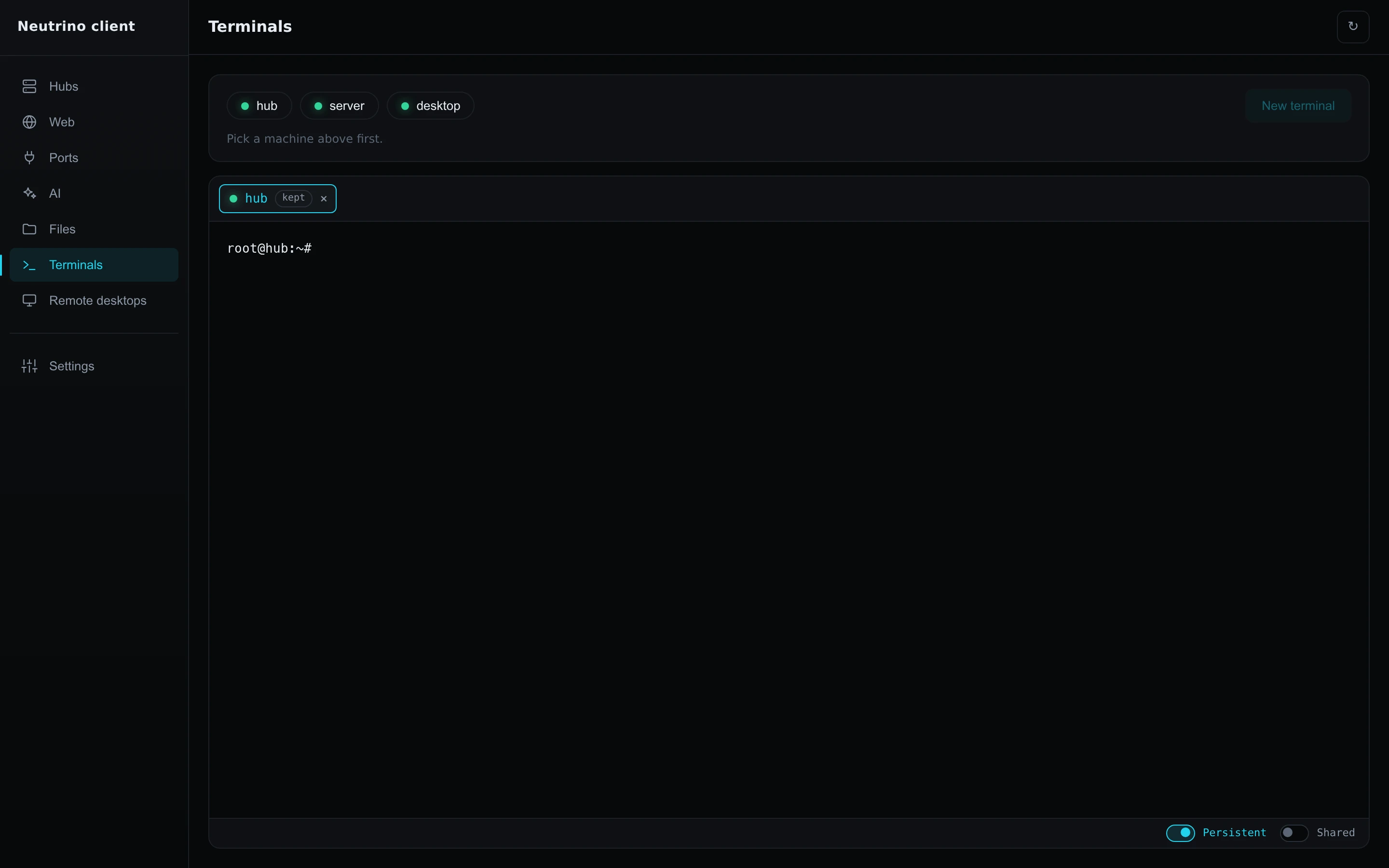
- On the Terminals page, pick the machine in the strip on top. A green dot marks a machine that is online.
- Select New terminal.
The shell opens in a new tab, and every key you type goes to the machine. The window draws the shell in MesloLGS NF, which the client includes, so a powerlevel10k prompt shows its icons.
To paste, press the right mouse button on the shell and choose Paste, or press Ctrl+Shift+V, or Cmd+V on macOS. Clear in the same menu sends Ctrl+C and empties the screen.
Two switches sit at the end of the line under the shell. Persistent keeps the session on the machine while no window is attached, for example after the client quits. Shared lists the session for every client with terminal rights on that machine.
Switching Persistent off ends a session when its last window closes, so a session with no window attached keeps running after the switch. nclient terminal stop, or a second press on its × on the panel's Terminals page, ends such a session.
A kept session shows as a tab with a grey dot; select it to attach, and its recent output appears first. When the channel comes back after a drop, each tab whose session still exists attaches again, and the others read Ended. The × on a persistent tab reads Press again to end, and a second press ends the shell on the machine. A terminal that closes with a code is covered under A terminal closes.
Remote desktops
The Remote desktops page opens a managed machine's shared screen in the RustDesk viewer the client includes. An entry appears while a machine shares its desktop through its Remote desktop module.
- Select Connect on the entry.
The button reads Connecting…, the viewer opens on that desktop, and the row reads Viewer open. The viewer connects to the entry's forward on 127.0.0.1, and the forward ends when the viewer closes.
Text copied on either machine pastes on the other. To copy a file to the remote machine, choose Transfer file in the viewer's toolbar. When the viewer does not open, see A remote desktop does not open.
Settings
- Select Settings under the rule in the sidebar.
- On the Client settings panel, pick the Language and the Theme: System, Dark or Light.
- Select Save.
The language and theme apply to this window, and the panel keeps its own. The About card lists this computer under This machine, then under Carried the client and each program it includes, with version, licence and Source link.
The tray
Closing the window hides it, and the client keeps every hub connected and every forward listening. The tray icon is in the taskbar corner on Windows, the indicator area of the top bar on Linux, and the menu bar on macOS. Its menu has Open, which shows the window, and Quit, which stops the client.
