
English
Make the hub a router or side gateway
To forward traffic for the devices at home, an installed hub changes from Server mode to Router or Side gateway mode. Both modes exist on Linux only, and the side gateway in the full edition only. Network describes every field the steps touch.
When to do this
Switch when the Proxy is to send other home devices' traffic through an exit node, or when this machine is your router already. A side gateway is a second machine on your router's network that forwards for the devices that name it as their gateway. A router takes over the box's interfaces and runs networks of its own. For clients, agents and services alone, Server mode is enough.
Before you switch
Each switch has a cost, and the apply bar names it before you apply:
- Entering router mode moves the interfaces from the machine's own network manager to the hub. A DHCP uplink takes a new lease and can come back on a new address, so open sessions drop.
- Leaving router mode returns the interfaces to the machine's network manager. The devices on the served networks lose DHCP, DNS and their gateway.
- Leaving side gateway mode cuts off the devices that named the box as their gateway.
Work from the hub box's own screen, or from a client over a virtual network, since a mode switch keeps each virtual network's exposure. The virtual network can drop for a moment while the uplink takes a new lease. A browser on the network you change can lose the panel; open it again at the box's new address. To go back, select Server in the same way.
Choose the mode
On a new install, the setup wizard asks What is this machine for? and offers Server, Side gateway, Router and One-arm router.

On an installed hub, open the panel's Network page:
- Under Mode, select Router or Side gateway. The current mode has the active badge.
- Read the warning in the apply bar.
- Select Apply mode.
- For a side gateway, type your router's address under Upstream gateway, where the box sends what it forwards.
- For a side gateway, select Apply upstream gateway.

Give each interface a role
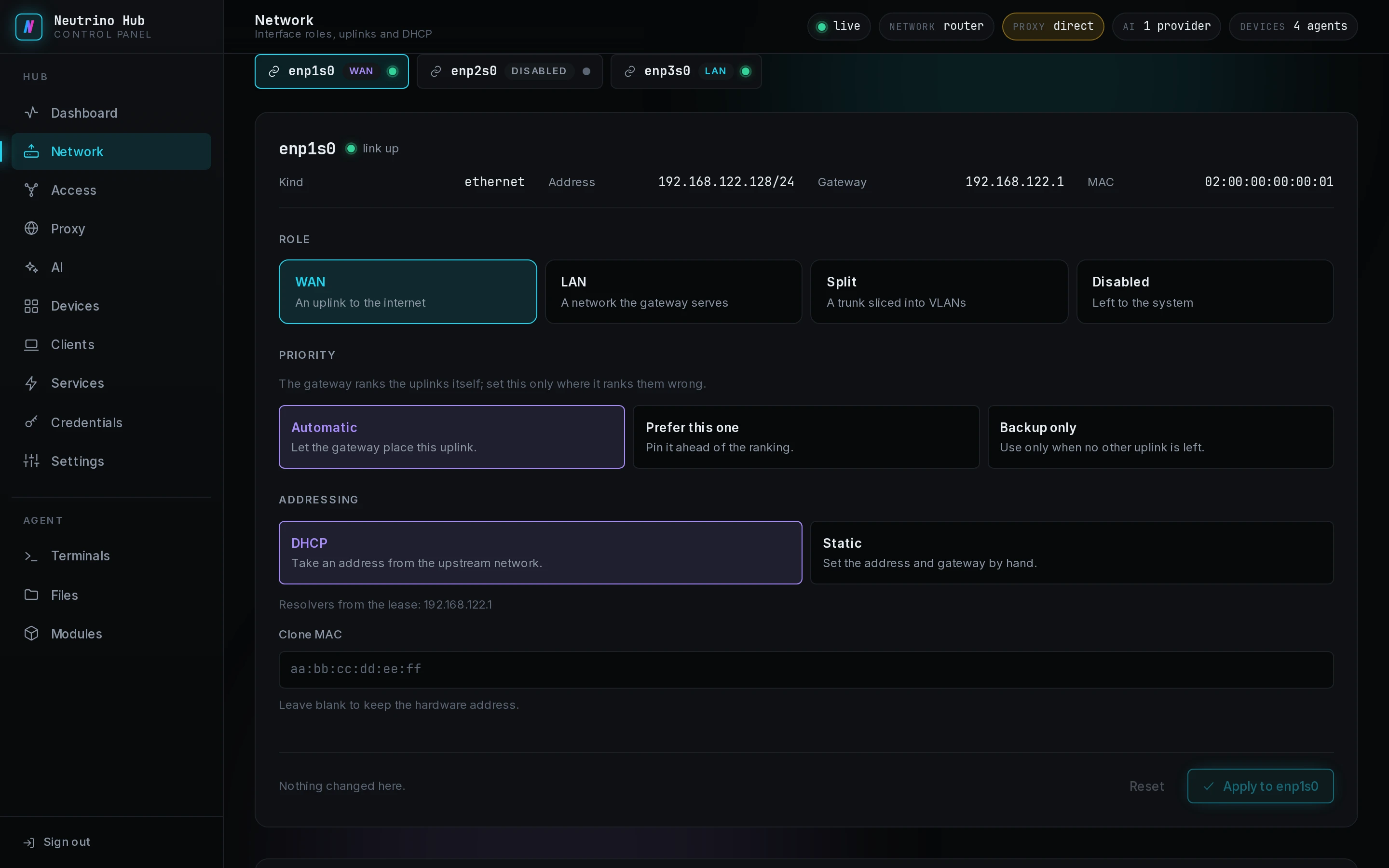
In router mode, each interface has a tab on the Network page. A server that becomes a router keeps each interface's exposure and starts with no roles, so give each exposed interface a role:
- Select the interface's tab.
- Under Role, select WAN for the uplink to the internet, or LAN for a network the box serves.
- Select Apply to followed by the interface's name.
Split slices one trunk into VLANs, and Disabled stops the interface with its link down. A one-arm router is a router on one wired trunk: the trunk takes Split, and its VLAN takes LAN on its own tab.
DHCP
In router mode, each LAN gives its devices addresses, with the box as their gateway and DNS server. The first served network is 192.168.8.0/24, with the box at 192.168.8.1. The DHCP part of the LAN tab holds Allocate address on this network, Range start, Range end and Lease time. By default the range is .100 to .200 and the lease 12h.
A side gateway leaves the addresses to your router. Point each device at the hub in one of these places:
- In the device's own network settings, set the gateway to the hub's address.
- In your router's DHCP settings, if they let you name the gateway it gives out, set it to the hub's address.
Exposure
Exposure lists the networks where the box accepts connections to the panel and its other services. In router mode, each network the box serves is exposed.
- Under Exposure, tick each network the box accepts connections from.
- Read the warnings in the apply bar.
- Select Apply exposure. The section reads Applied.
Leave the WAN unticked: an exposed uplink accepts connections from the internet on every port the box listens on. A ticked interface in router mode needs a role other than Disabled. When an apply fails, Troubleshooting has the fix.
