
English
A remote editor
VS Code runs on the computer under your account, and the phone or the laptop opens it in a browser to edit the computer's projects.
Before you start, finish the Step zero, and turn the phone's Wi-Fi back on for the first open at home. You need your account's user name on the computer, and on Windows its login stored under Logins on the panel's Credentials page.
Start VS Code
- On the panel's Modules page, select your computer under Which machine.
- Select the VS Code tab. If the tab is missing, select + at the end of the module list and tick VS Code.
- Select Open and accept the terms. Microsoft's license terms open in a new browser tab, and the button reads Terms accepted.
- Select Install, and wait until the tab no longer reads installing.
- Select Configure.
- Under Instances, select Add instance.
- Type your account name on the computer in Account.
- On Windows, pick your stored login under Windows login for.
- Select Apply VS Code.
The instance's row reads running, and the editor works on the files of your account.
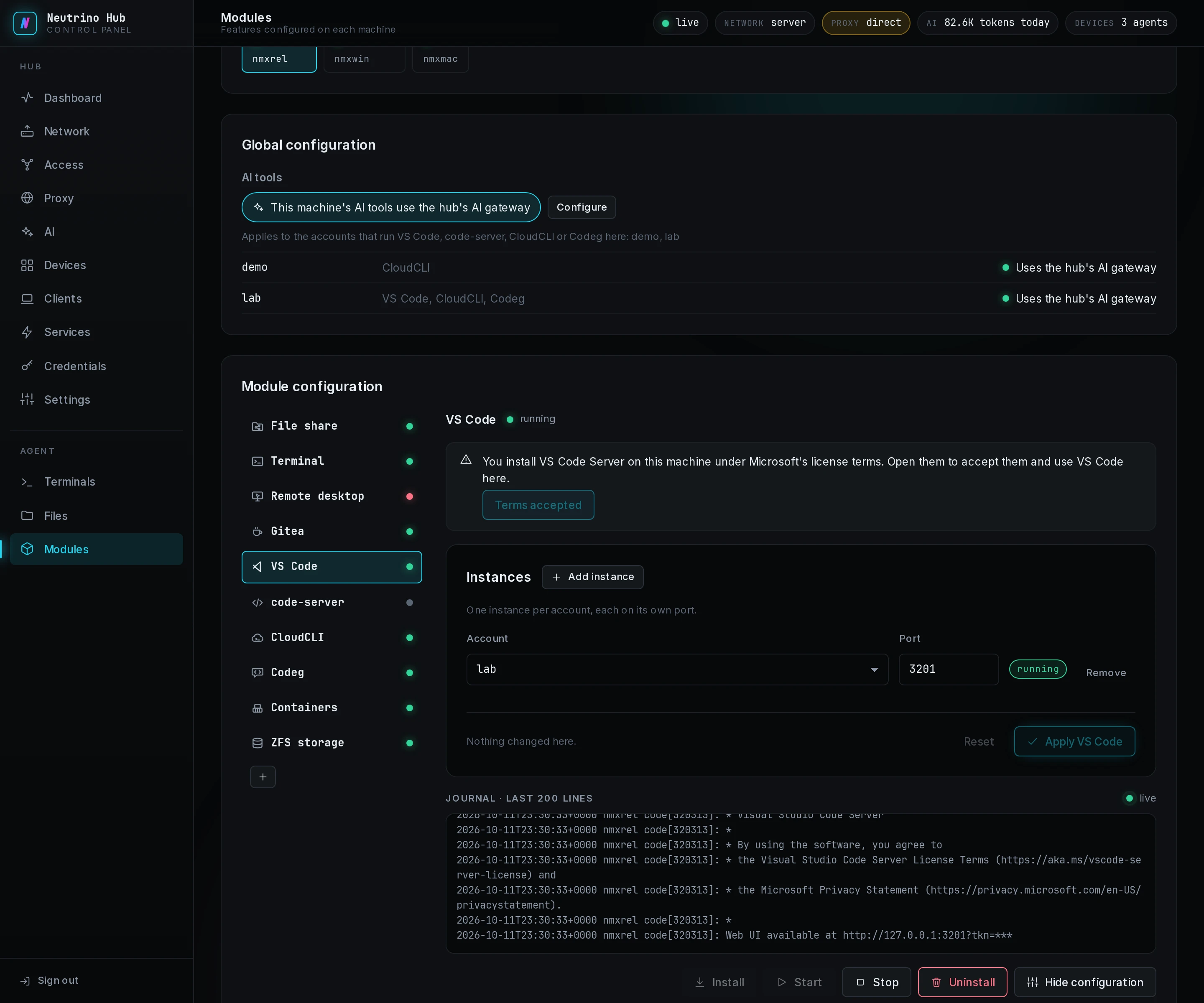
On Linux and macOS, the code-server tab installs another browser editor with the same steps, as code-server describes. When the row reads not running with a code under it, Troubleshooting has the fix.
Open it
- In the app or the laptop's client window, open Web.
- On the VS Code row with your account in parentheses, select Open.
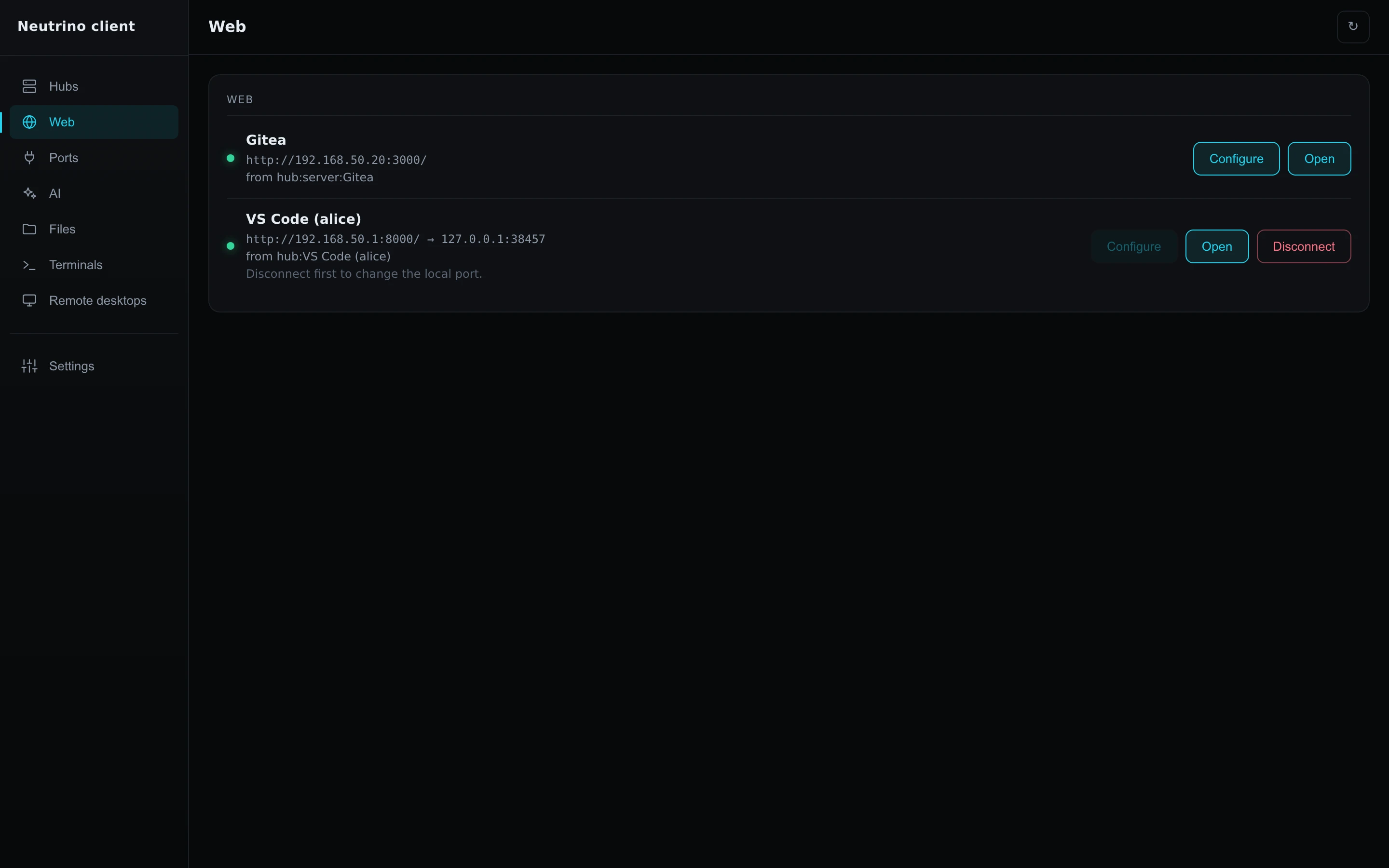
The browser shows the editor. From its File menu, open a project folder on the computer.
Open it again from outside
- Turn off Wi-Fi on the phone.
- In the app, on Web, select Open on the same row.
The editor opens again in the phone's browser, this time over NetBird. Your Claude Code sessions open on the phone through Your AI session on the phone.