
English
Join the hub to NetBird
This page puts the hub on your NetBird network with a reusable setup key. The hub gives the same key to every client allowed on the virtual network, so its clients join the same network. The mainland edition has no NetBird; use EasyTier there.
Before you start, you need:
- A NetBird account at netbird.io, or a management server of your own.
- The NetBird card turned on and applied on the Access page.
Create a setup key several machines can use
The key must accept many machines, because the hub joins with it and then gives it to its clients.
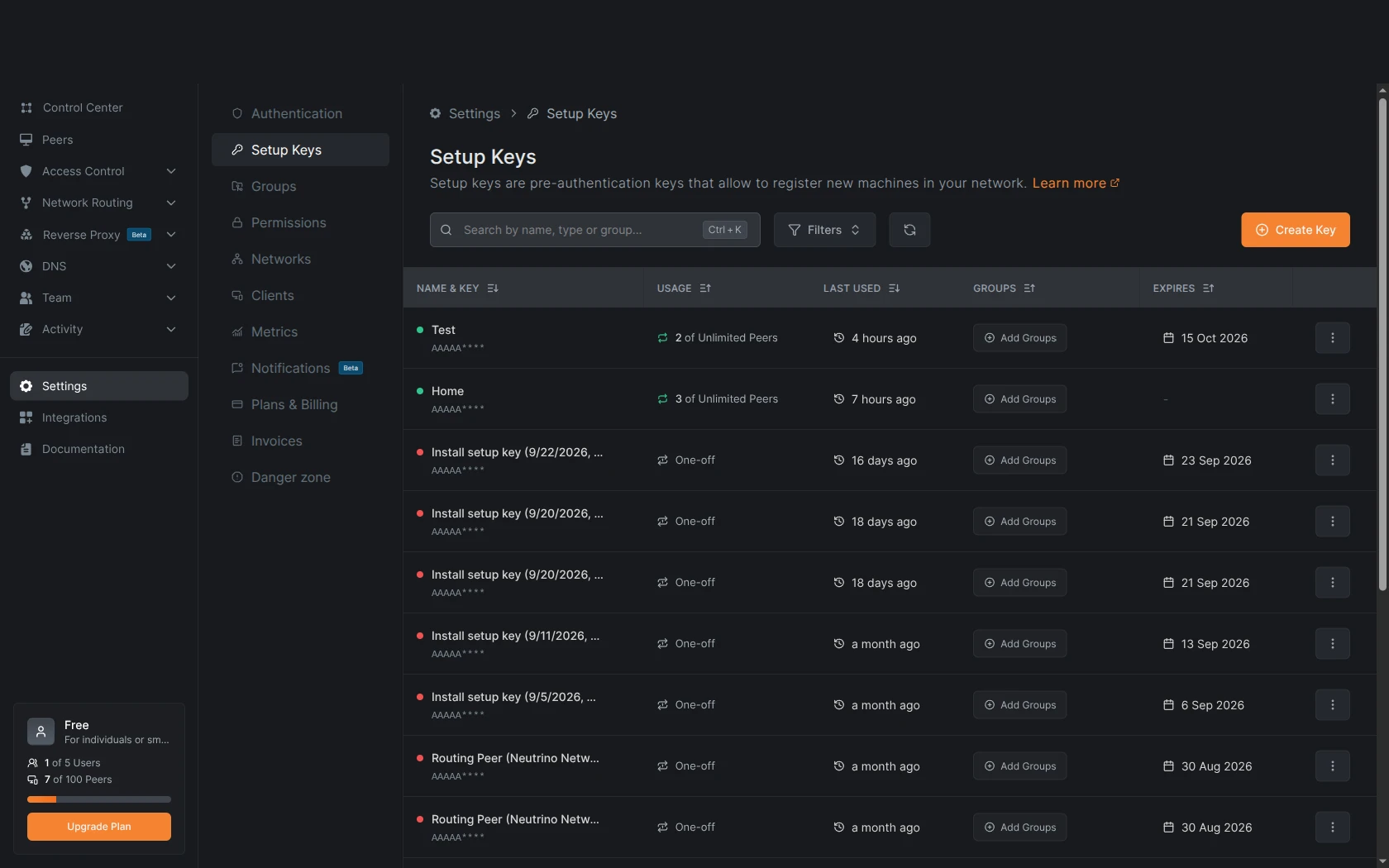
To create the key:
- In the NetBird console, open Settings > Setup Keys.
- Select Create Key.
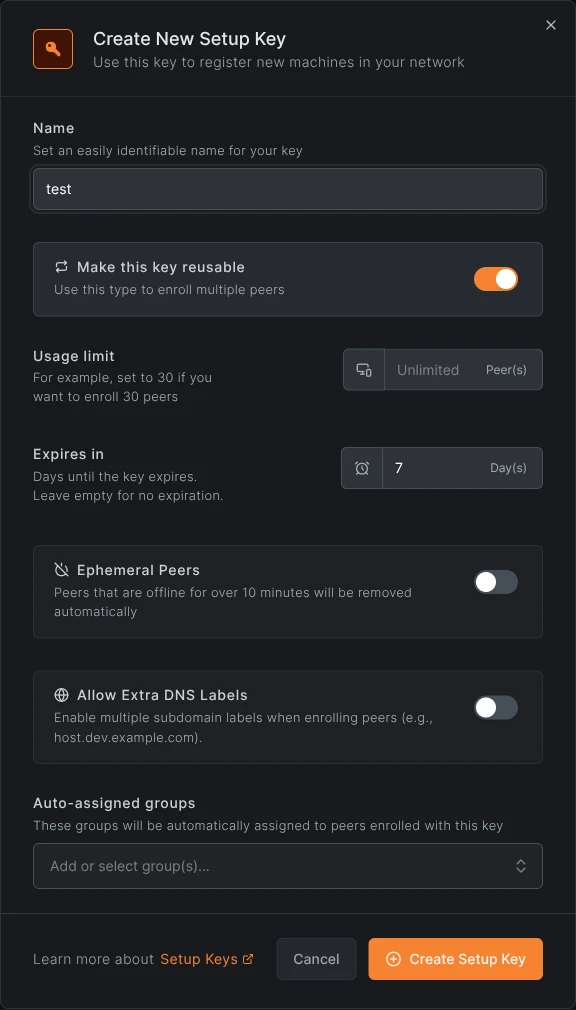
- Type a Name, such as the hub's name.
- Turn on Make this key reusable, and leave Ephemeral Peers and Allow Extra DNS Labels off.
- Leave Usage limit at Unlimited, or set it to at least the number of clients plus one.
- Leave Expires in empty.
- Under Auto-assigned groups, create a group for the machines of this hub.
- Select Create Setup Key.
- In Setup key created successfully!, copy the key. The console shows it only this one time.
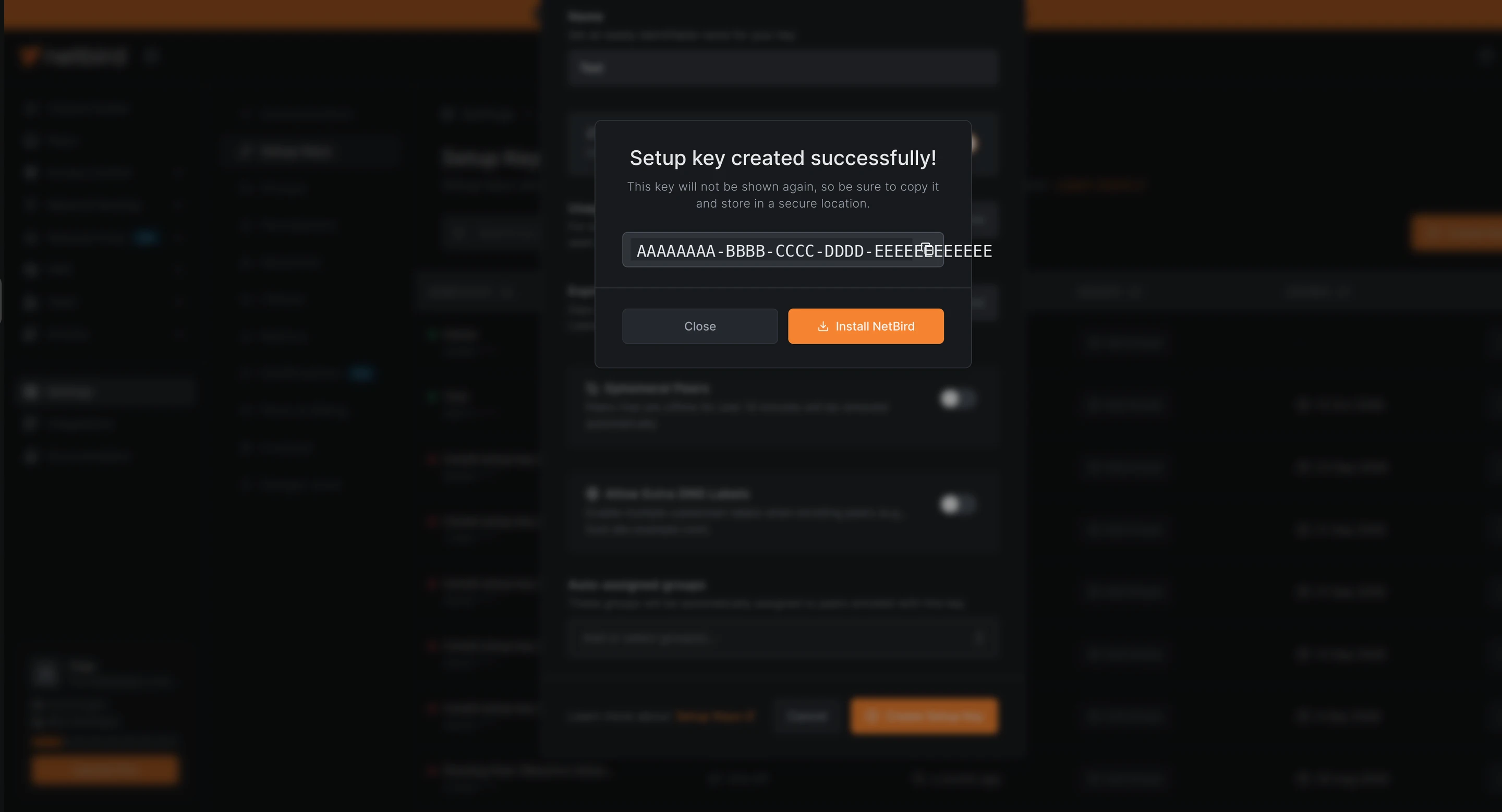
WARNING
The key from Networks > Routing Peers > Add > Install NetBird works one time. The hub joins with it, and the first client to join after the hub fails.
Join the hub
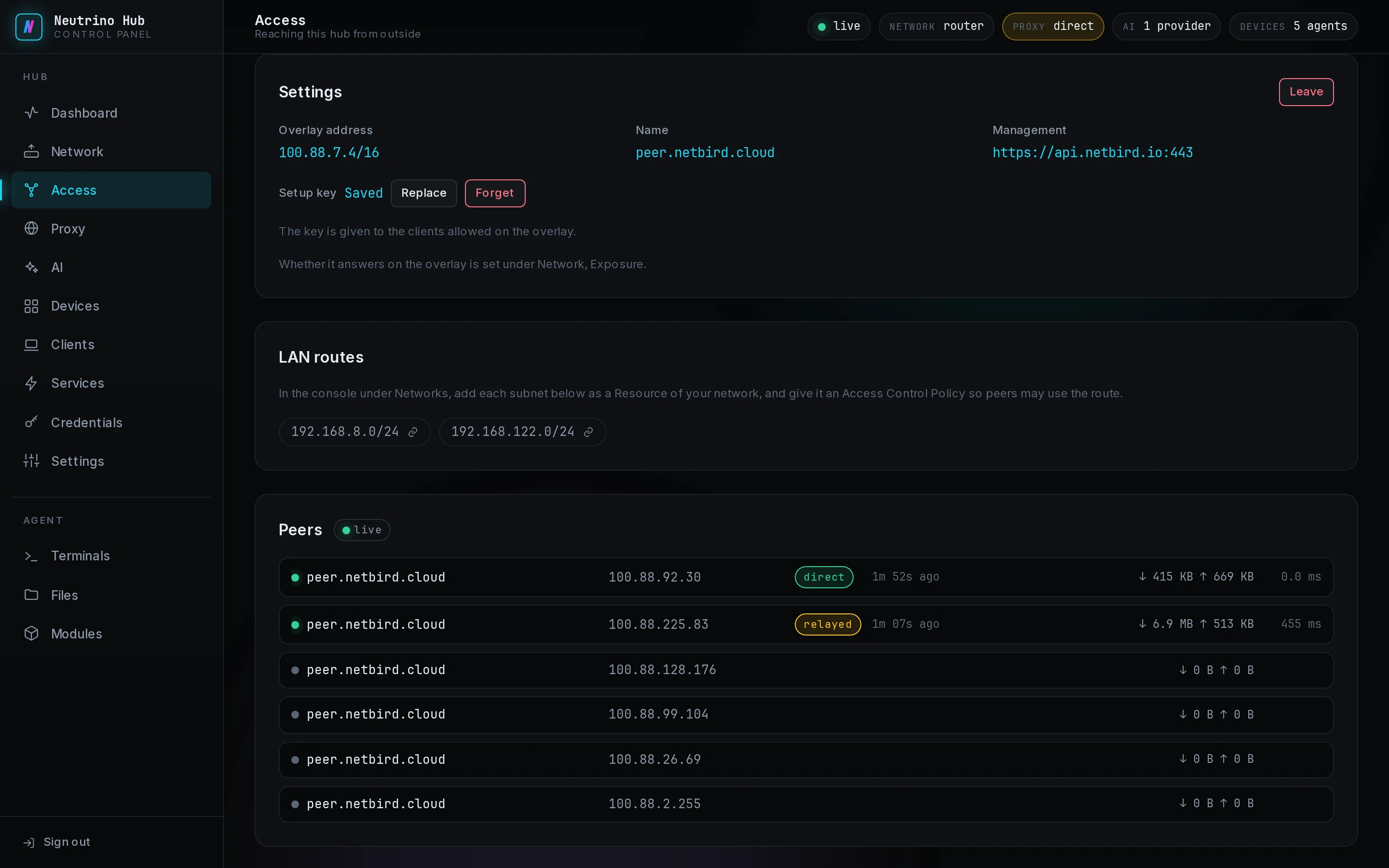
- On the Access page, select the NetBird card.
- Under Settings, paste the key into Setup key.
- For netbird.io, leave the management URL empty; for your own server, type its address.
- Select Join.
The badge beside NetBird reads joining, then connected. Setup key then reads Saved. When the badge reads anything else, the cause is on Troubleshooting.
Replace the key clients get
A one-time key fails for every client after the hub's own join. To give clients a key they can use:
- Create a reusable key as in Create a setup key several machines can use.
- In the NetBird section, beside Setup key, select Replace.
- Paste the new key.
- Select Save.
The hub stays connected, and each client receives the new key with its next state from the hub. A client whose join failed joins after you select Connect on it again. After Forget, no client can join this network until you save a key again.
Publish the LAN subnets
LAN routes lists each network the hub serves. After you add such a network as a route in the NetBird console, a peer reaches its machines by their LAN addresses. In server mode the list reads No interface has the LAN role.

The console steps are in LAN devices over NetBird.
Re-enroll or leave
To give the hub a new NetBird identity:
- In the NetBird section, select Leave.
- In Leave the NetBird network, confirm.
- Paste a setup key into Setup key and select Join.
- If the NetBird console still lists the hub's old peer under Peers, delete it there.