
English
CloudCLI
CloudCLI is a web page for AI coding sessions, published on npm as @cloudcli-ai/cloudcli. The CloudCLI module runs it at version 1.37.3, one instance per account on a managed machine. The Codeg module puts several coding agents in one page, Codex and Gemini CLI beside Claude Code.
| System | Machines that run it |
|---|---|
| Linux | amd64 and arm64 |
| Windows | amd64 and arm64 |
| macOS | Apple silicon and Intel |
Add an instance
- On the CloudCLI tab of the Modules page, select Install.
- Select Configure. The Instances section opens under the tab.
- Select Add instance.
- Fill Account with the name of an account on the machine.
- Optional: change the Port. The first instance gets 3001.
- On a Windows machine, pick the account's login under Windows login for the account.
- Select Apply CloudCLI.
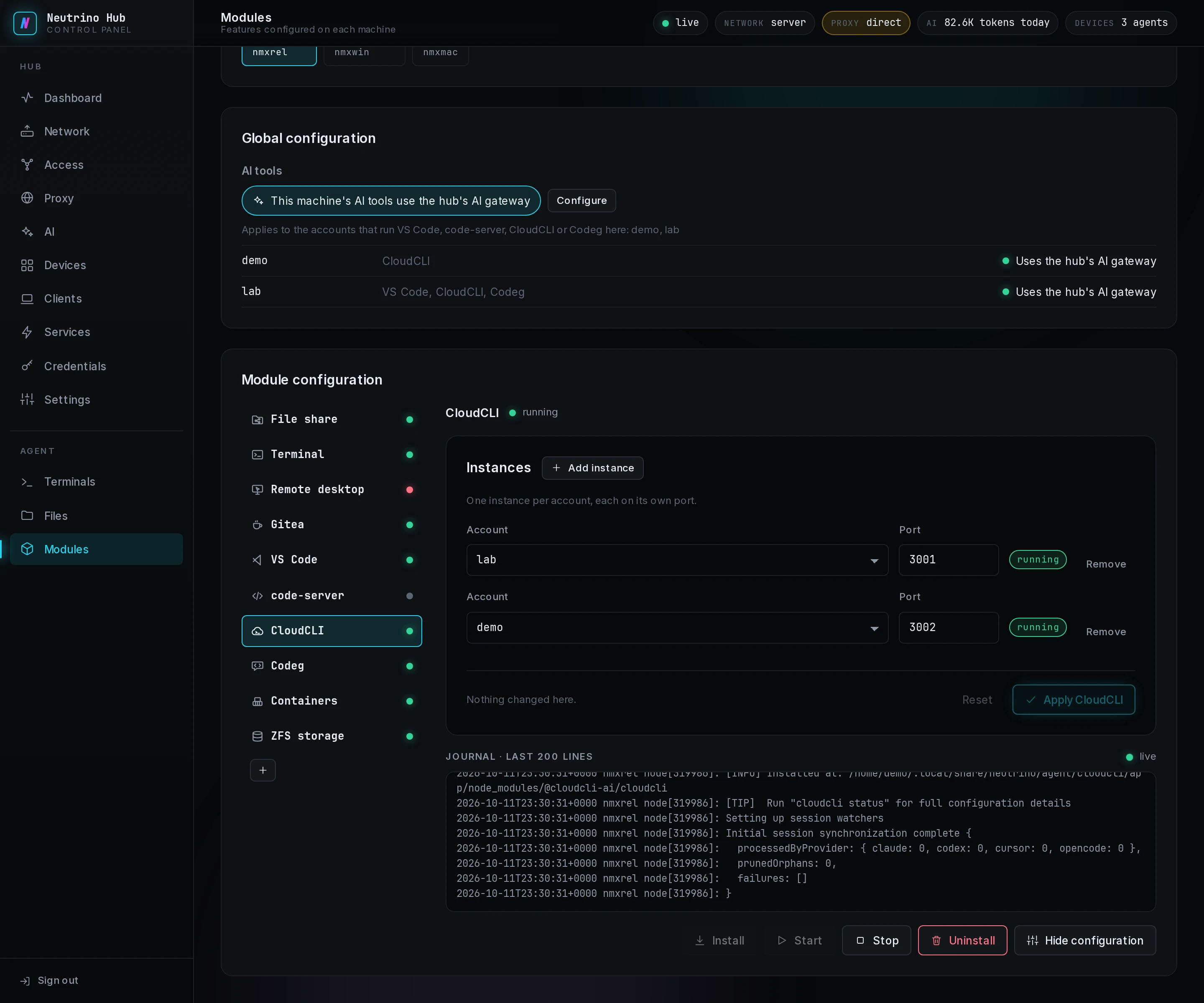
You install CloudCLI on the machine for each account: the module's installer fetches Node.js and runs npm as that account, which takes several minutes. The tab reads installing meanwhile. Each instance runs as its account, and its row reads running or not running. On Windows, store the account's login under Logins on the Credentials page before you pick it.
When an install or an apply fails, the row names the code, listed under CloudCLI in troubleshooting. After fixing the cause, select Apply CloudCLI again.
What the service finds on its PATH
CloudCLI looks up the tools it starts, such as Claude Code or Codex, in the PATH the agent writes for the instance's service:
| System | The service's PATH, in order |
|---|---|
| Linux | the module's Node.js folder, ~/.local/bin, ~/bin, /usr/local/bin, /usr/bin, /bin |
| macOS | the module's Node.js folder, ~/.local/bin, ~/bin, /opt/homebrew/bin, /usr/local/bin, /usr/bin, /bin |
| Windows | the module's Node.js folder, %APPDATA%\npm, then the account's own PATH |
CloudCLI itself reports a tool it cannot find there. Install such a tool as the account, into one of these folders. Point a machine's AI tools at the gateway points the tools' settings at the hub.
Open it from a client
Each running instance is a row under Web on the Services page, titled CloudCLI with the account in parentheses. Open on a client's Web page opens CloudCLI's page signed in. The agent's forwarder in front of CloudCLI signs in with a password the hub generated, and rejects CloudCLI's own register and sign-in addresses with 401.
The first open
The first Open on an instance shows CloudCLI's own setup screens, signed in as the account. The client fetches a one-time token from the hub, as Token entries describes, and the forwarder checks it and signs the browser in to CloudCLI. The instance's row on the Modules page reads running throughout, since the setup writes settings while the service keeps running.
CloudCLI's setup
On the client's Web page, select Open on the instance's row.
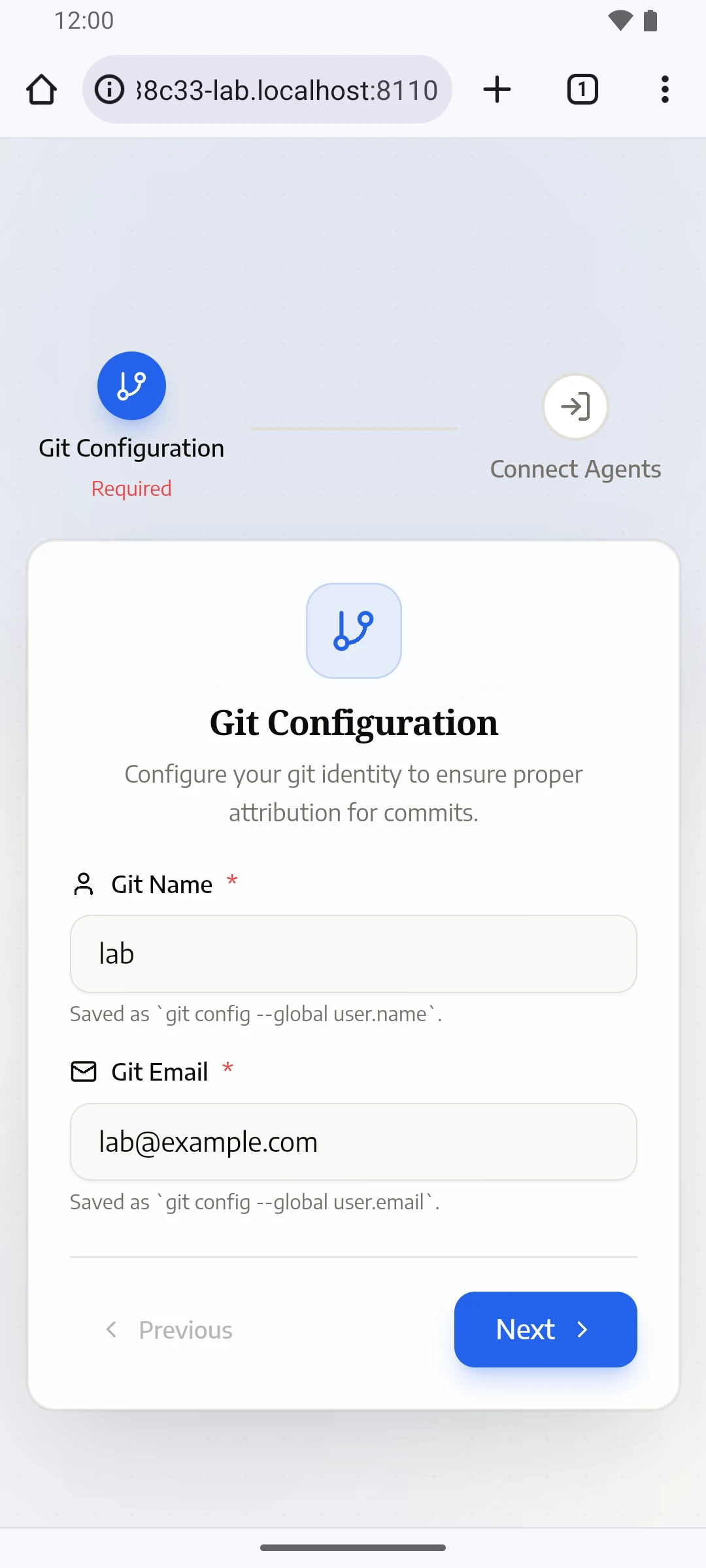
Fill Git Name and Git Email. CloudCLI saves them in the account's global git settings.
Select Next.
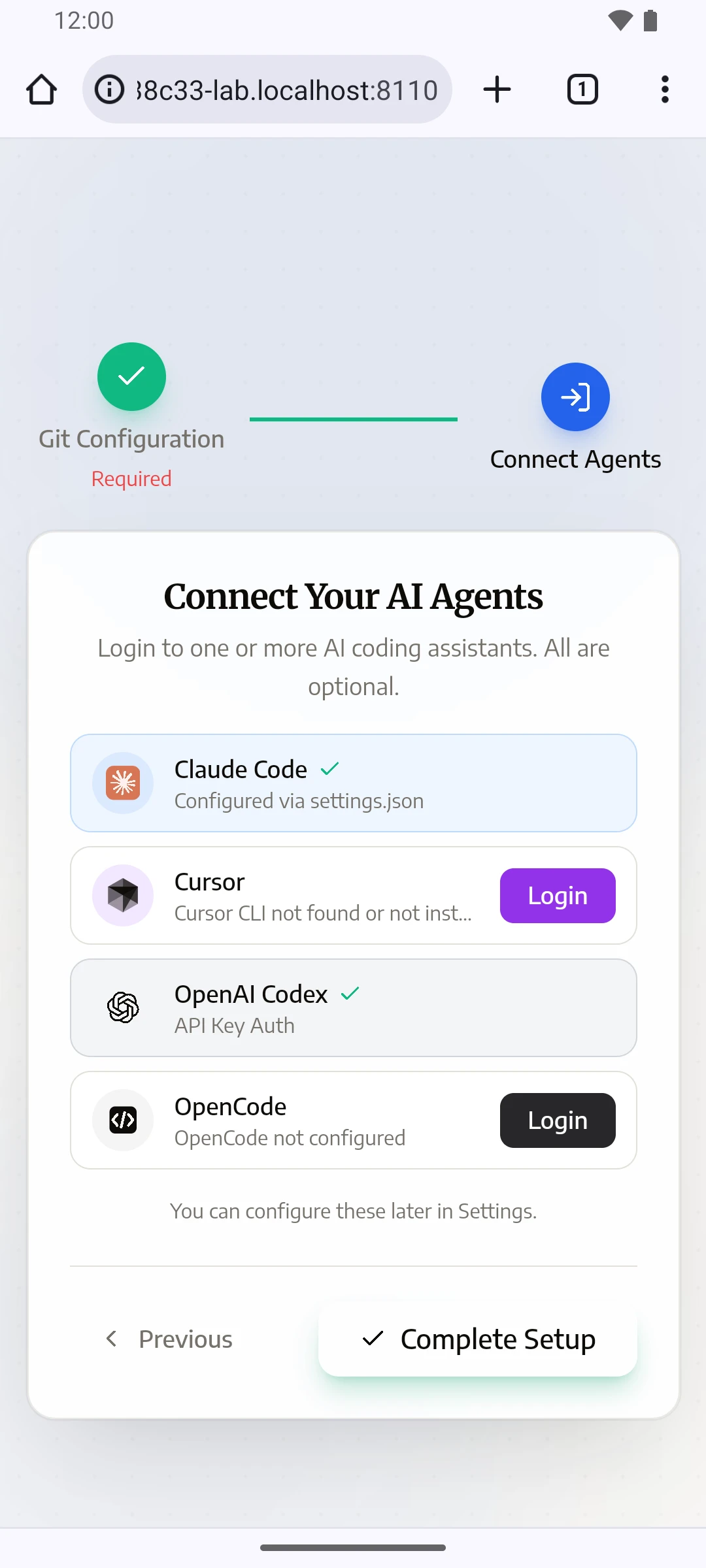
Select Complete Setup.
On Connect Your AI Agents, the tick on Claude Code comes from the account's ~/.claude/settings.json. A session also needs Claude Code installed as the account, in a folder on the service's PATH.
The first project and session
A project is a folder on the machine, and a session is one Claude Code conversation in it. After the setup, the project list is empty:
Select the menu button at the top left. The list reads No projects found.
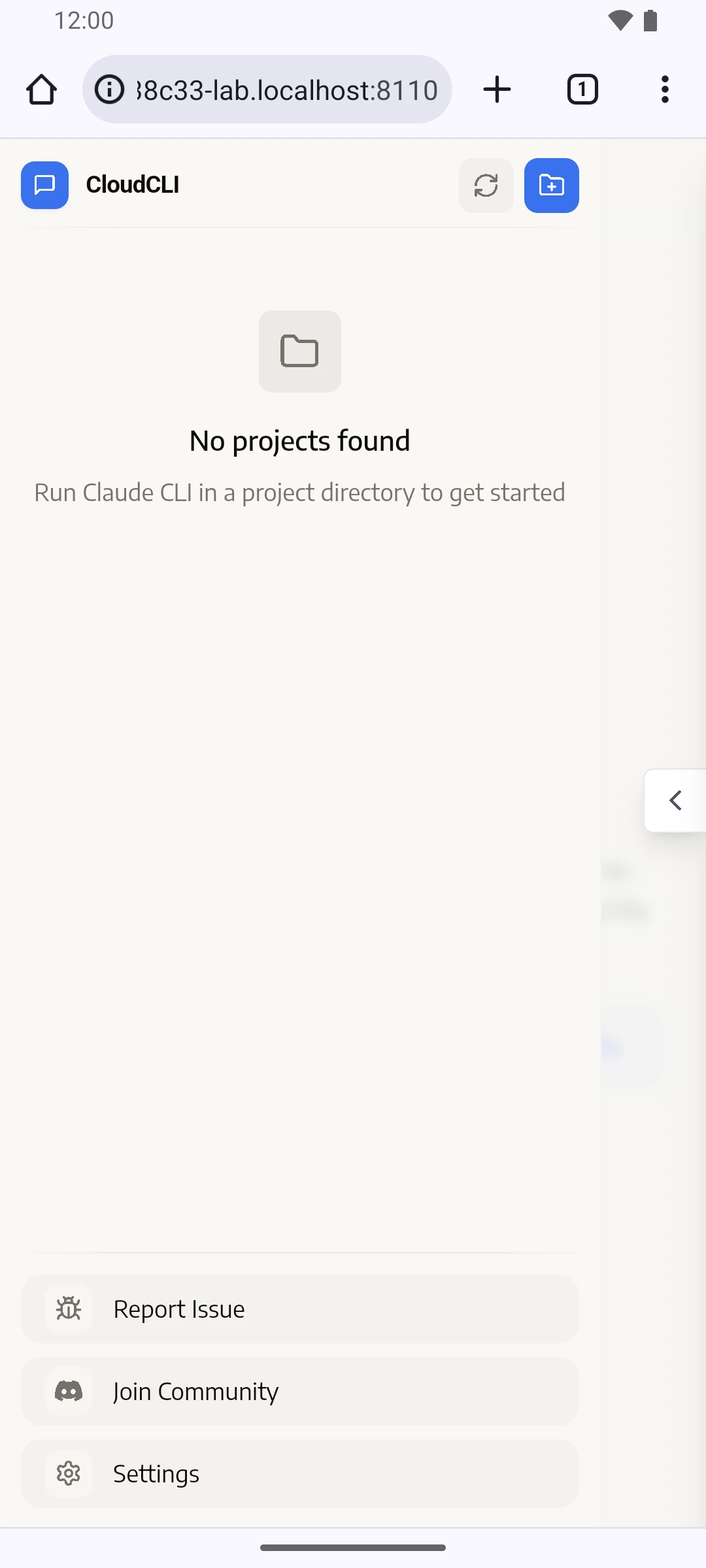
Select the folder button with a plus, at the top of the list.
Under Workspace Path, type the full path of a folder the account owns.
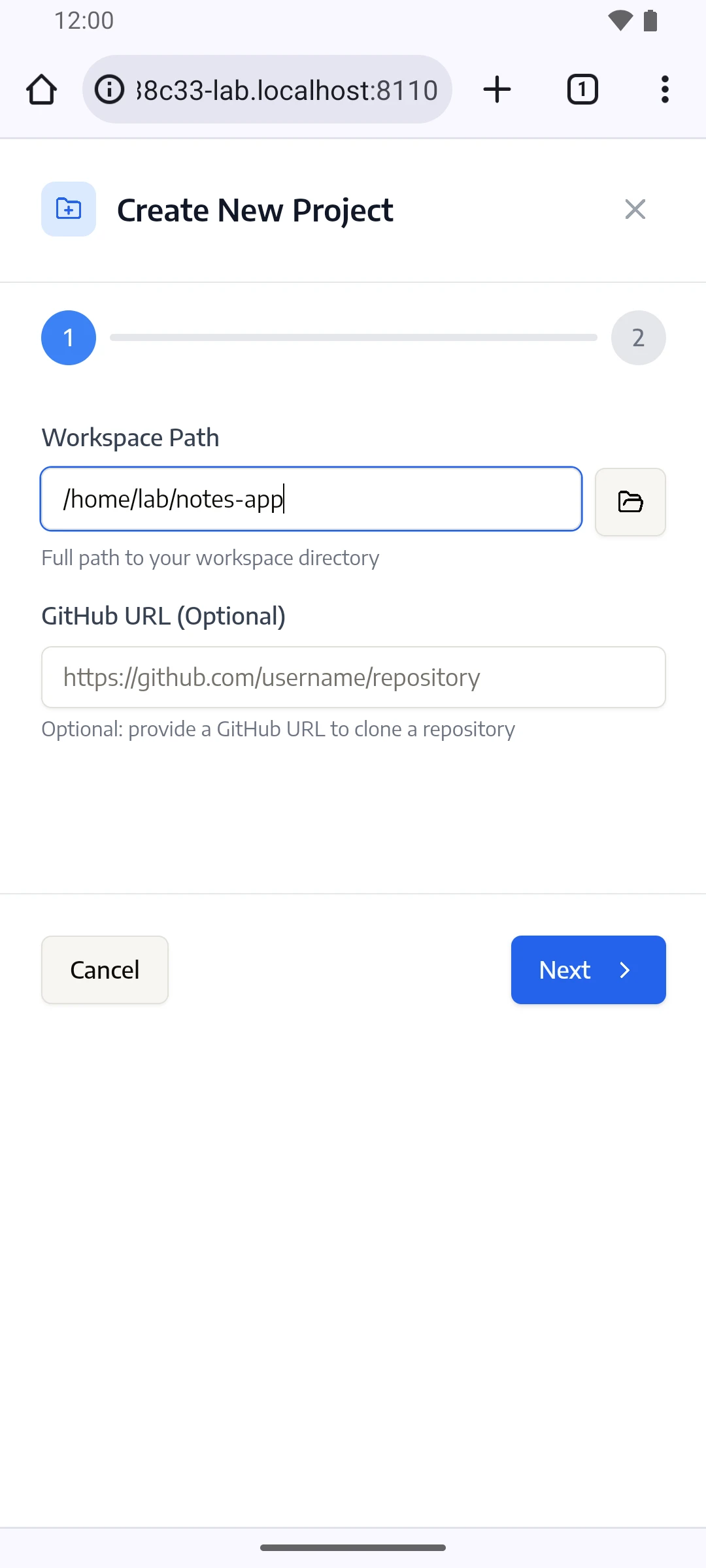
Select Next.
Select Create Project.
Under the project, select New Session.
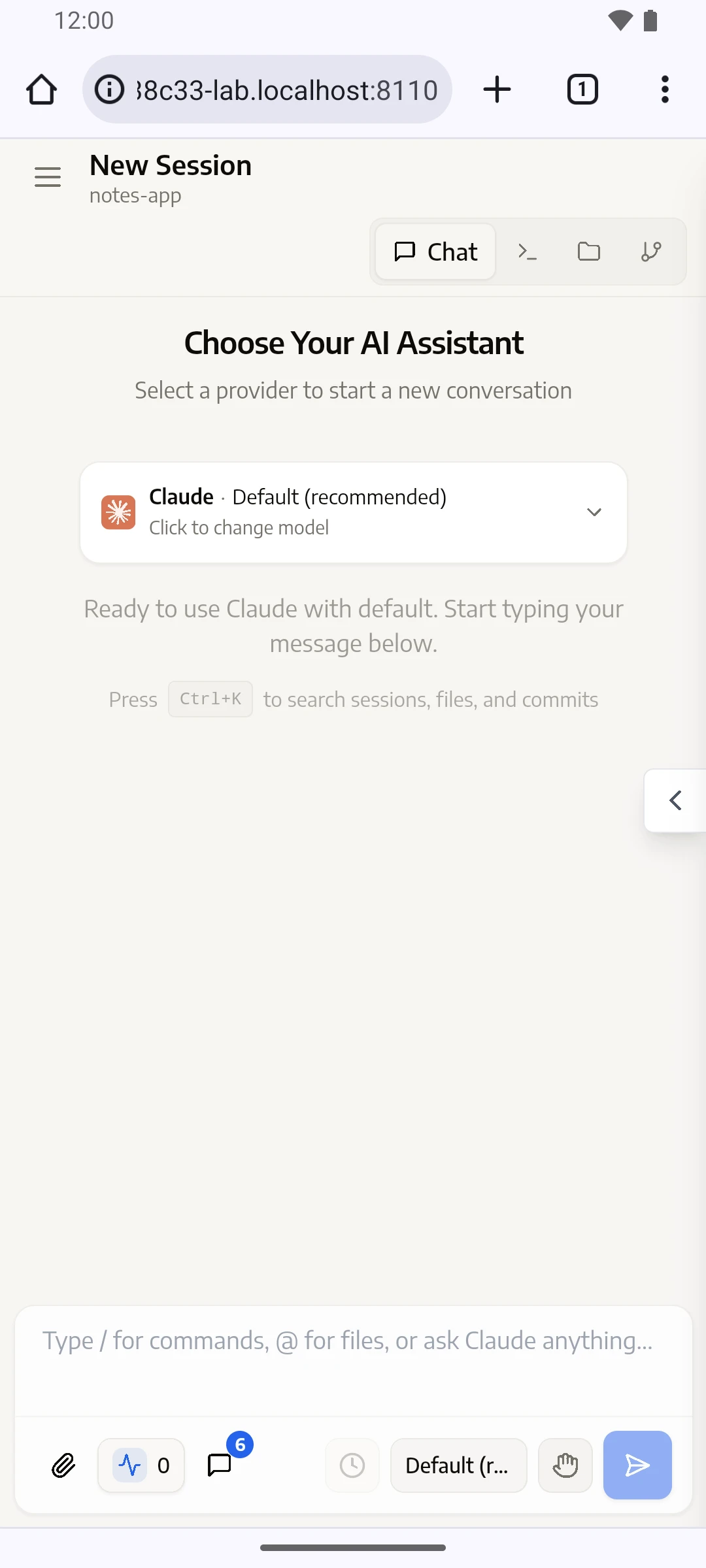
Type a message in the box at the bottom, and select the send button.
The reply appears under the message. The session appears in the project's list, titled with its first message.
A folder where the account runs Claude Code in a terminal also appears as a project, as the empty list's hint says. When the account has no Claude Code, the first message gets an Error naming the missing Claude Code binary; install it as described in What the service finds on its PATH.