
English
Android app
The Android app opens a joined hub's web pages, ports, AI gateway, shares, terminals and remote desktops on a phone or a tablet, at home or from outside. The app connects only to the hub's port 8443. Install a client covers installing the app and joining a hub.
Hubs
In portrait, a bar at the bottom opens Hubs, Web, Ports, AI, Files, Terminals, Remote desktops and Settings. Turned sideways, or on a tablet, a sidebar takes its place.
The Hubs screen holds one row per hub: its name, its state line, its address and the package it runs. While the channel is open, the line names its path, such as Connected · LAN, with a tag such as 48 ms for the last round trip.
The path is LAN for an address on a network the phone is on, and Direct for one the hub exposes outside. The others are NetBird, EasyTier and SSH Relay. Turn on Direct and SSH Relay describe the two paths a hub owner sets up.
While the channel is down, the line reads Connecting… as the app dials every address of the hub. When no address connects, the line names the reason, then · and what ends it, as in The hub did not answer · retrying in 5 s. The seconds count down live, and at 0 the line reads Connecting… again. The wait starts at 5 seconds and doubles up to 60, and a connection or a network change sets it back to 5. The state line of a hub row lists every reason with its fix.
A network change, such as moving from mobile data to Wi-Fi, makes the app dial each hub again at once. The refresh button at the top right does the same.
The dot is green while connected and pulsing amber while dialling. It is amber while the next step is up to the network or the hub, and red when you must act. A hub the app has never reached shows a grey dot.
Row buttons
- Leave reads Press again to leave after one press, and a second press within five seconds removes the hub. The phone forgets the hub, and its forwards and shares end.
- Reconnect, on a row reading Replaced by another client, takes the hub back from the other client.
- Panel opens the hub's panel in the phone's browser, signed in, wherever the app reaches the hub. It appears when the phone's permission on the hub's Clients page includes Hub panel without the password.
Virtual network
A hub that publishes NetBird or EasyTier shows a Virtual network line under its row, with Connect.
- Select Connect. The first time, Android shows its VPN connection request.
- Select OK in that request, so the app can run NetBird or EasyTier inside Android's VPN service.
While the engine starts, the line reads Connecting… with Logging in to and the engine's name under it, and Cancel stops it. With an address, the line reads Connected · and the phone's address, and the button becomes Disconnect.
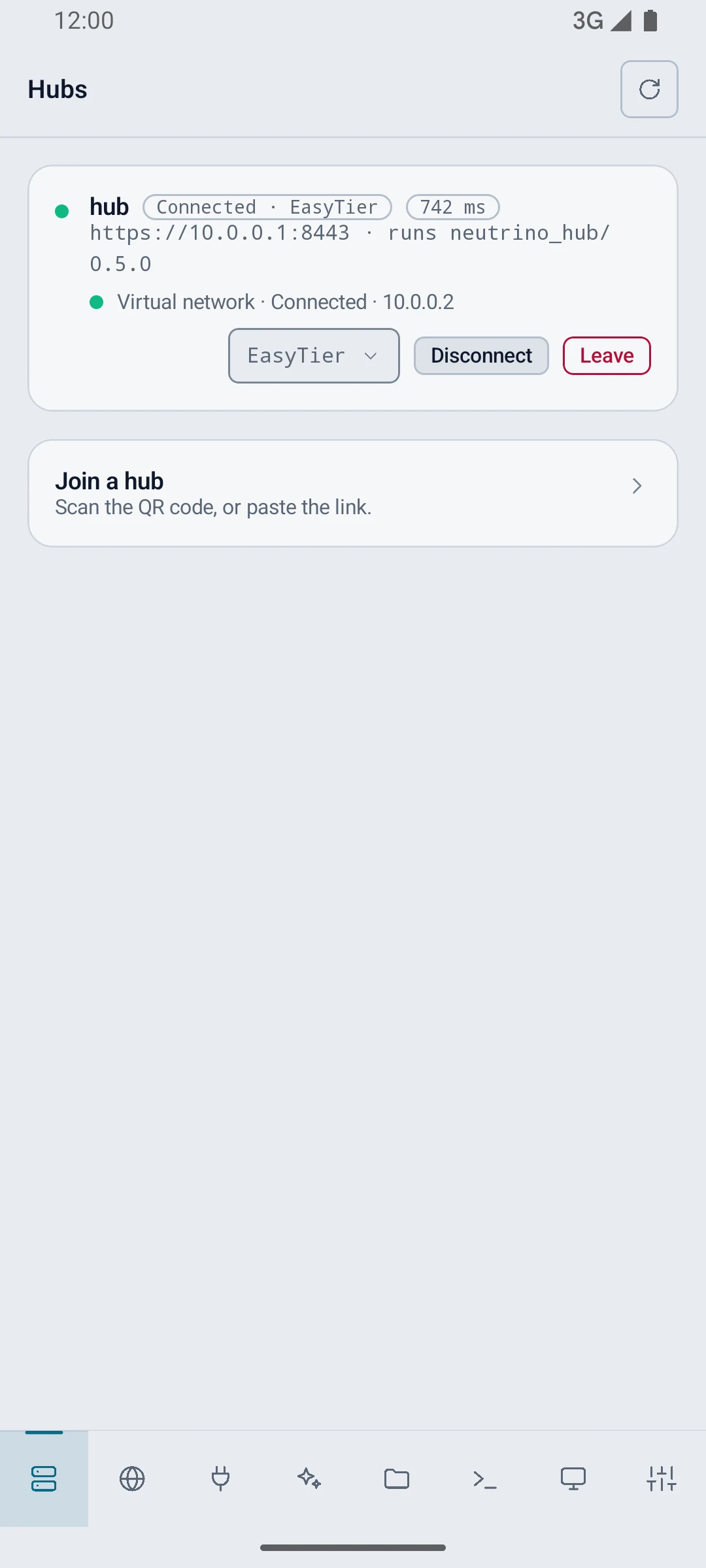
In EasyTier's console mode, the line stays at Connecting… with the reason This machine is registered with the console. Attach it to a network there. It turns to Connected · when whoever runs the hub's EasyTier console attaches the phone there, as EasyTier describes.
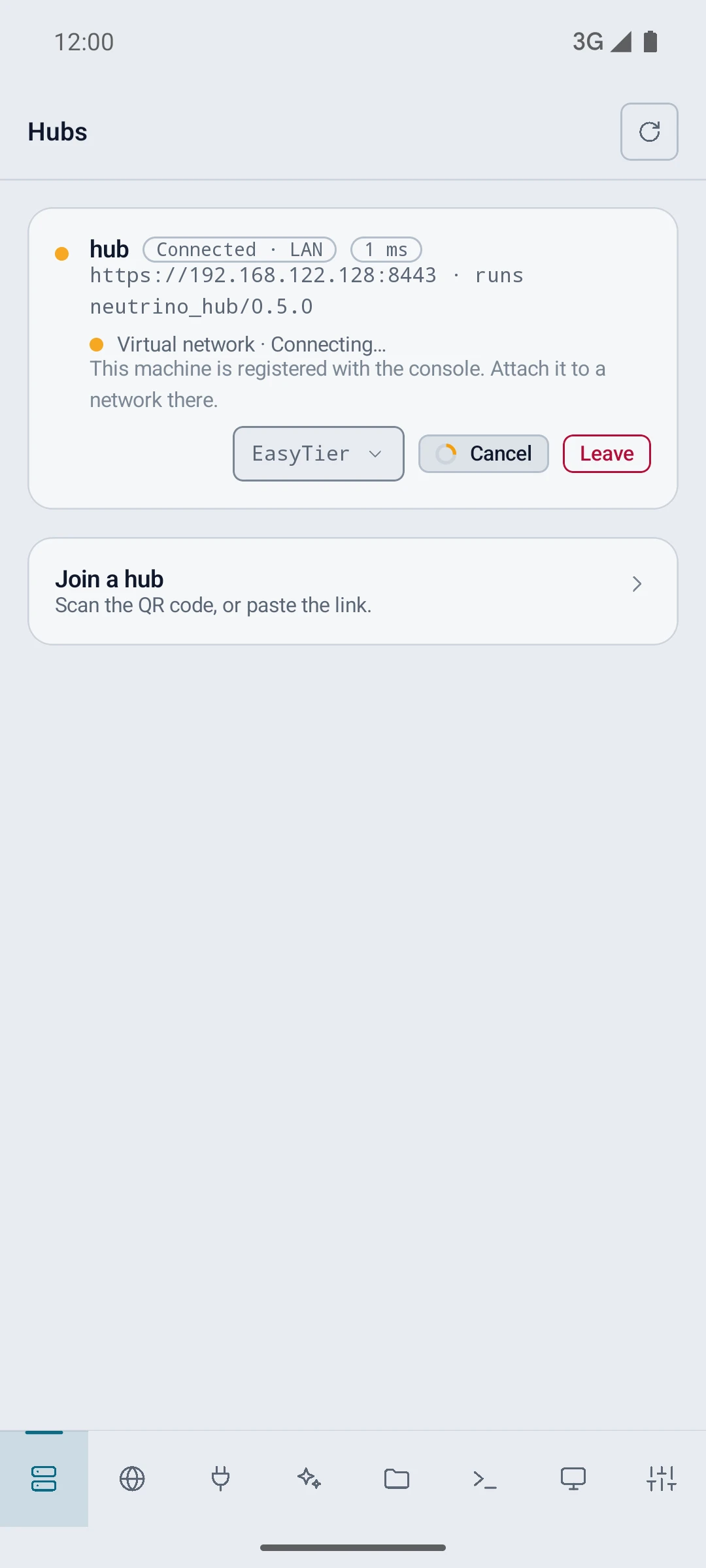
The phone is on one hub's network at a time, so while one is on, Connect on another hub is greyed. When the hub publishes both engines, a picker beside the button names the one to use; it changes only while the line reads Not connected. A failure returns the line to Not connected with a code under it, listed under The virtual network does not connect.
Forwards
A forward is a port on the phone's 127.0.0.1 that the app opens for one entry. A foreground service of the app holds every forward and every hub connection, so they keep running behind other apps. A forwarded row shows → 127.0.0.1: and the port.
On the Web and Ports screens, Configure on a row sets the Local port. Auto keeps the entry's own port when it is free and otherwise takes one from 20000 up. Fixed takes a number from 1024 to 65535. Configure is greyed while the entry is forwarded.
A row whose forward cannot reach its service shows a code, listed under A client page cannot reach its service.
Web
The Web screen lists the web pages the joined hubs publish: Gitea, VS Code, code-server, CloudCLI, Codeg and addresses declared on a hub's Services page.
- Select Open on a row.
The app makes the entry's forward and opens the page in the phone's browser on 127.0.0.1. Disconnect ends the forward.
Ports
The Ports screen lists each port the hubs publish.
- Select Connect on the entry. The row adds
→ 127.0.0.1:and the local port. - Select Copy, and paste the loopback address into the app on the phone that uses the port.
A UDP entry reads host:port/udp, and Copy copies its address without /udp. UDP ports says what a UDP port through the hub suits.
AI
The AI screen holds one row per hub that runs an AI gateway. Select Connect to forward the gateway to the phone. The forwarded row shows two loopback addresses, each with its own Copy:
| Label | Address |
|---|---|
| For apps that add /v1 themselves | the gateway's address on 127.0.0.1 |
| For apps that want /v1 in the address | the same address with /v1 at the end |
Under them, This client's key shows the key behind an eye button, with Copy. Paste one address and the key into an app on the phone that takes an OpenAI-compatible endpoint. The address works only while the app holds the forward.
Files
The Files screen turns each share the hubs publish into a location in Android's Files app. A share opens wherever the hub's row reads Connected.
- On the Files screen, select Open in Files on the share.
- Pick or type the Share username, and type the Share password.
- Optional: clear Remember. Checked, the password stays in the Android Keystore; cleared, the app keeps it until it stops.
- Select Connect. The app tries the login on the share, then opens the share in Files.
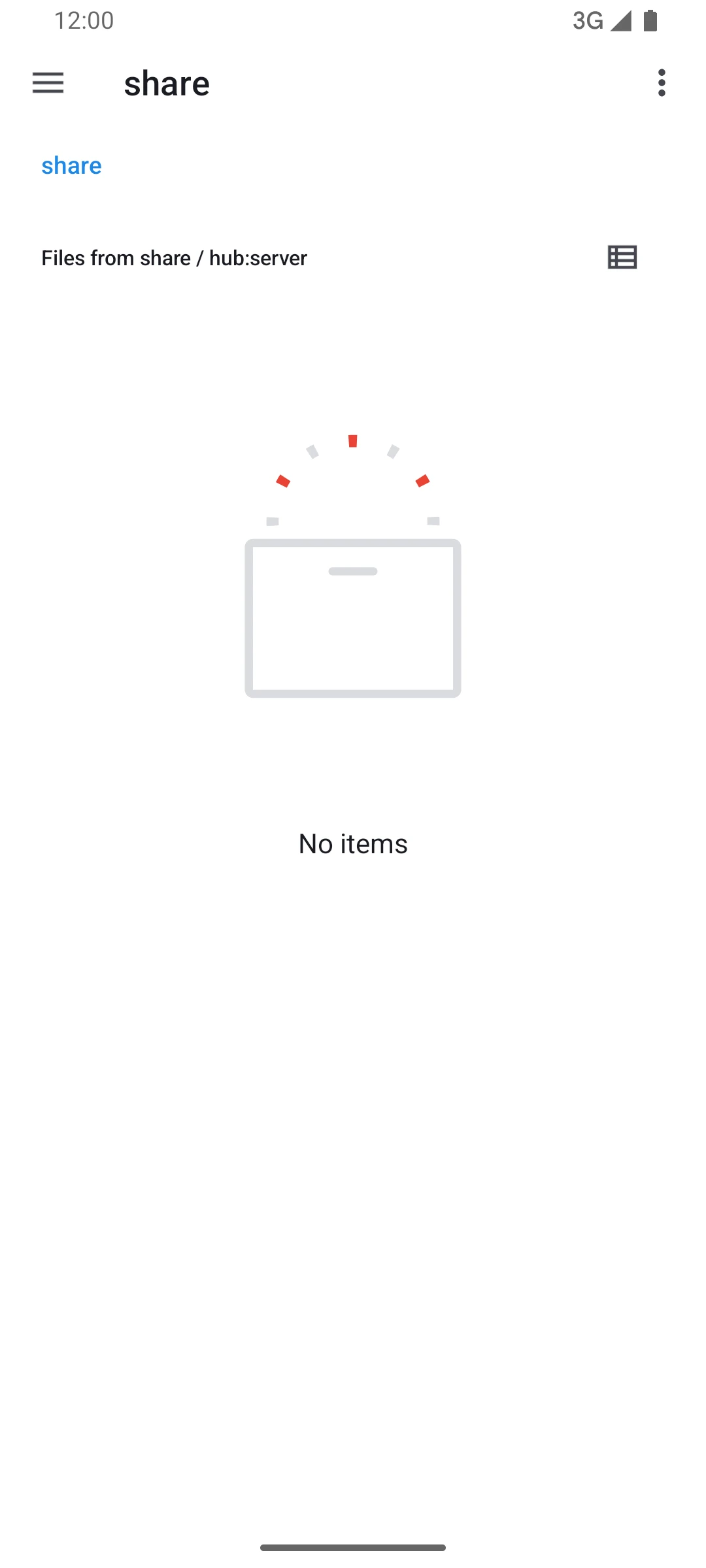
In Files, the location has the share's name, with the hub and the machine under it. A row without a saved password shows the Password not saved badge, and Forget password removes a saved one after a second press.
Terminals
The Terminals screen opens a shell on a machine a hub manages. The phone's permission on the hub's Clients page must include terminals.
- Pick the machine among the chips on top. A green dot marks a machine that is online.
- Select New terminal.
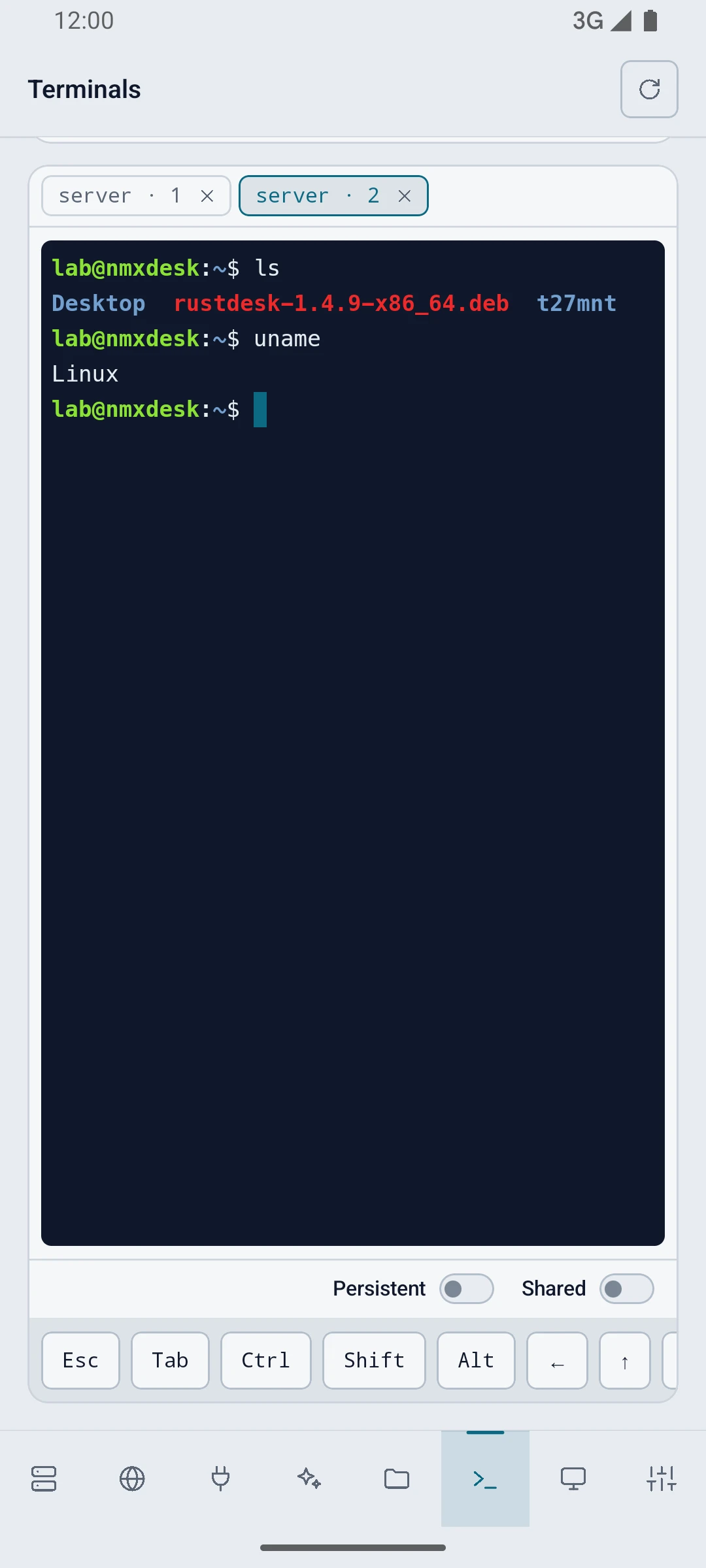
The shell opens in a tab named after the machine and a number. Above the keyboard, a row adds Esc, Tab, Ctrl, Shift, Alt and the four arrows. A long press on the shell opens Copy, Paste and Clear.
The Persistent switch under the shell keeps the session on the machine while no terminal is attached after the app stops. A persistent tab returns when the app starts again, reading Detached; waiting for the hub until the hub is back. Its × reads Press again to end, and a second press ends the shell on the machine. The panel lists the same sessions on Terminals.
Remote desktops
The Remote desktops screen opens the desktop a managed machine shares through its Remote desktop module.
- Optional: select Configure on the entry, pick the Codec and the Quality, and select Save.
- Select Connect. The viewer opens on the whole screen.
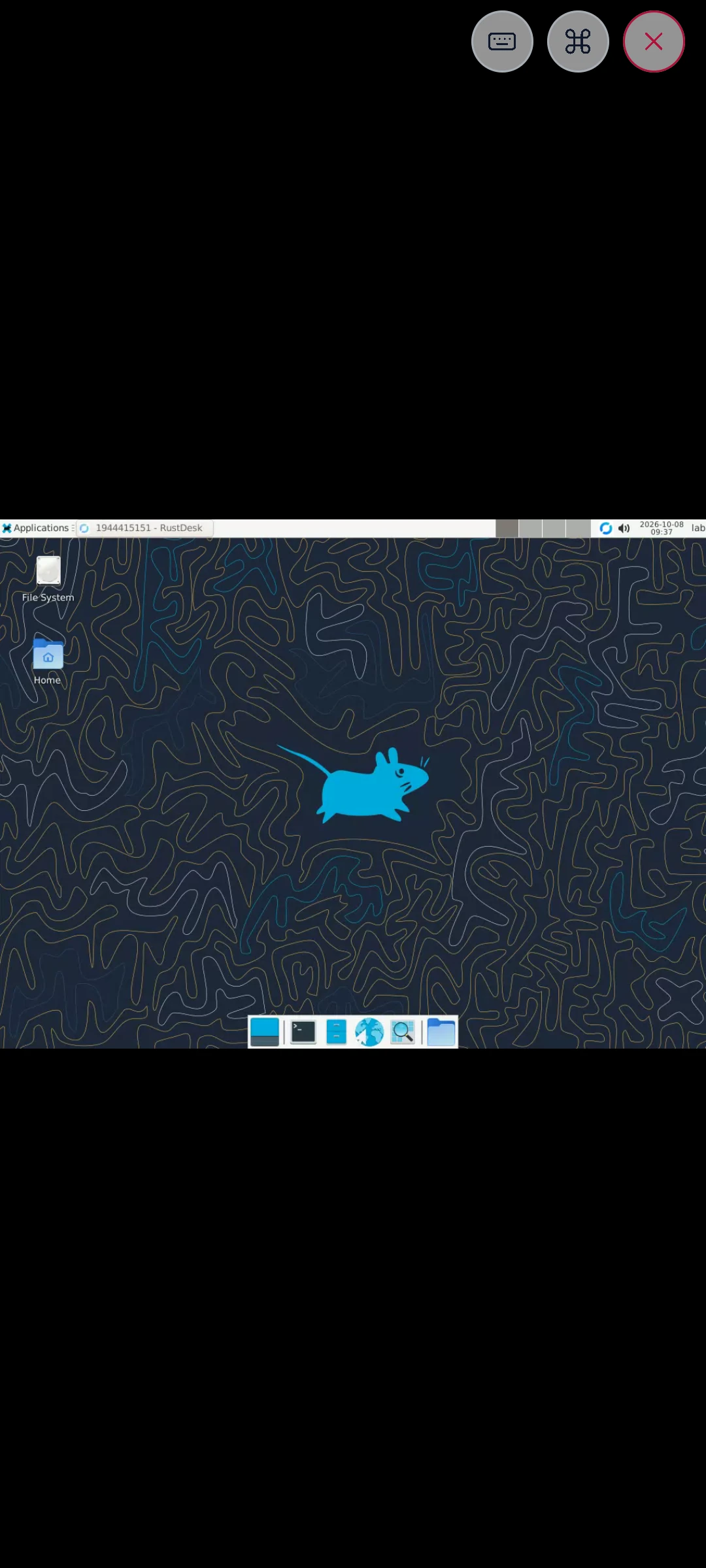
At the top right of the picture, Keyboard raises the phone's keyboard. Keys shows a key bar with Esc, Tab, Ctrl, Shift, Alt, Win, Paste and the arrows. Disconnect ends the session. Drag or pinch with two fingers to reach the part of the picture the keyboard covers.
Settings
On the Settings screen, pick the Language and the Theme, then select Save. About shows the app's version, its AGPL-3.0 licence, and the cores built into the app.