
English
Modules
The Modules page, subtitled Features configured on each machine, sets up the server software of one managed machine at a time. It lists only machines whose agent is online.
What the page shows
| Panel | Holds |
|---|---|
| Which machine | the managed machines whose agent is online |
| Global configuration | the machine's AI tools, described in AI tools |
| Module configuration | on the left, a list of the machine's modules, one tab per module with its icon and its title; on the right, the module you picked: its state word, its sections, its output box and its buttons |
Pick a machine and a module
- Under Which machine, select a machine.
- In the list under Module configuration, select a module.
The list comes in one order: File share, Terminal, Remote desktop, Gitea, VS Code, code-server, CloudCLI, Codeg, Containers, ZFS storage. Each tab shows the module's icon, its title and a dot; the state word is in the heading on the right.
The + at the end of the list opens the module picker, where a check adds a module's tab for this machine. A module the machine's system cannot run is greyed there and reads This machine's system cannot run it.
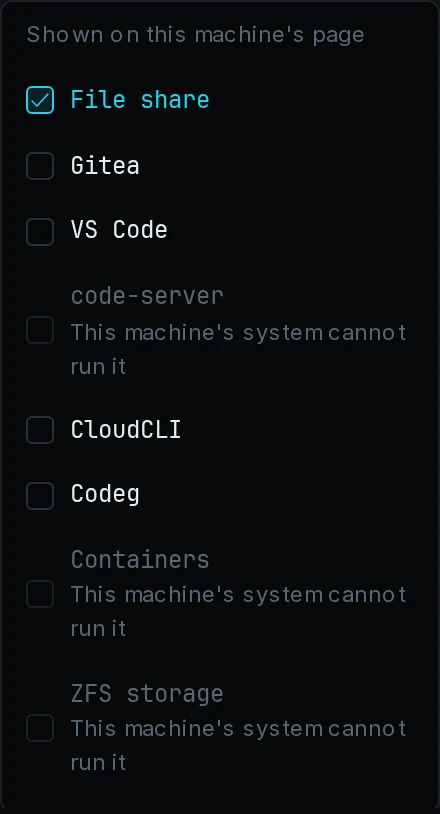
The agent's own package includes Terminal and Remote desktop, so every machine has those two tabs and the + picker leaves them out. Their tabs have no Install, Start, Stop, Uninstall, Configure or output box.
What the state word means
| Word | The machine |
|---|---|
| not installed | has none of the module's software |
| installed | has the software, and the hub has never configured it |
| stopped | has the hub's configuration, with the service stopped |
| running | has the hub's configuration, with the service running |
| installing, uninstalling | is in the middle of that step |
| queued | is applying another module first; the agent applies one module at a time |
| failed | reported that the last step failed, with the reason on the right |
| unsupported | runs an agent older than the module; the whole tab is greyed out |
| never reported | has said nothing about this module |
Install, start and stop
| Button | What happens on the machine | Available when the tab reads |
|---|---|---|
| Install | the software is installed, and nothing is configured or started | not installed |
| Start | the configuration is applied and the service starts | installed, stopped |
| Stop | the configuration is applied and the service stops | running, or installed with the service up |
| Uninstall | the software and the configuration the hub wrote are removed | installed, stopped, running, failed |
After a press, the tab reads queued or installing, and its buttons stay greyed until the machine reports a new state, for two minutes at most. During an install or an uninstall, the box on the right shows Output, and otherwise the last 200 lines of the module's log.
On a tab that reads failed, the button of the failed step stays available; select it again to run the step again. A module section's apply button and Configure retry a refused configuration the same way. When a press fails, see Errors on the Modules page.
On the VS Code tab, Microsoft's terms come first, as VS Code describes.
Uninstall
Uninstall opens a confirmation that names the module and the machine.
WARNING
The software and the configuration the hub wrote are deleted. Pools, share folders, repositories and container volumes stay on the machine.
Removing the agent itself also leaves the shares and accounts in place, as Uninstall describes.
Configure
Configure does what Start does, then opens the module's sections on the right; a second press, on Hide configuration, closes them.
When the hub holds no configuration for a module, the first Configure takes what the machine already has, so the first apply changes nothing:
| Tab | What the first Configure takes over |
|---|---|
| File share | on Linux, the shares and accounts on the machine; on Windows and macOS, only those this module made earlier |
| Gitea | the instance the hub installed; a Gitea installed by hand keeps its own settings |
| Containers | the containers already there, with their images, ports, volumes and environment, and the registry mirrors |
| ZFS storage | nothing; the sections show what the machine reports about its disks |
The other tabs take over nothing. From then on, the hub's copy is the only truth, and each apply writes the whole configuration to the machine.