
English
Reach LAN devices without an agent through NetBird
These steps route your home LAN over NetBird to reach the devices that run no agent, such as a printer or a NAS admin page. A client away from home then opens each one at its own LAN address. The mainland edition has no NetBird; its route page is the EasyTier one.
Before you start, check these:
- The hub has joined NetBird, as Join the hub to NetBird describes, and a client reaches the hub through NetBird.
- The hub runs in router or side gateway mode, as Make the hub a router or side gateway describes.
- You are an administrator of the NetBird account in its console.
Read the subnets the hub serves
- In the panel, open the Access page.
- Select the NetBird card.
- Under LAN routes, select the subnet that holds the device's address, such as
192.168.10.0/24for a printer at192.168.10.20. The panel copies the subnet.

Add the subnet as a resource
The console's Add Network wizard asks for the network, its resource, a policy, then the routing peer, and the next three sections follow it.
- In the NetBird console, open Network Routing > Networks.
- Select Add Network.
- Type a Name for the network, then continue to Add Resource.
- Type a Name for the resource.
- Paste the subnet into Address.
- Continue to the access control step.
Allow the clients' group
Every client of the hub joins NetBird with the hub's setup key, so it is in the group that key assigns. The Setup Keys list shows that group in the key's Groups column.
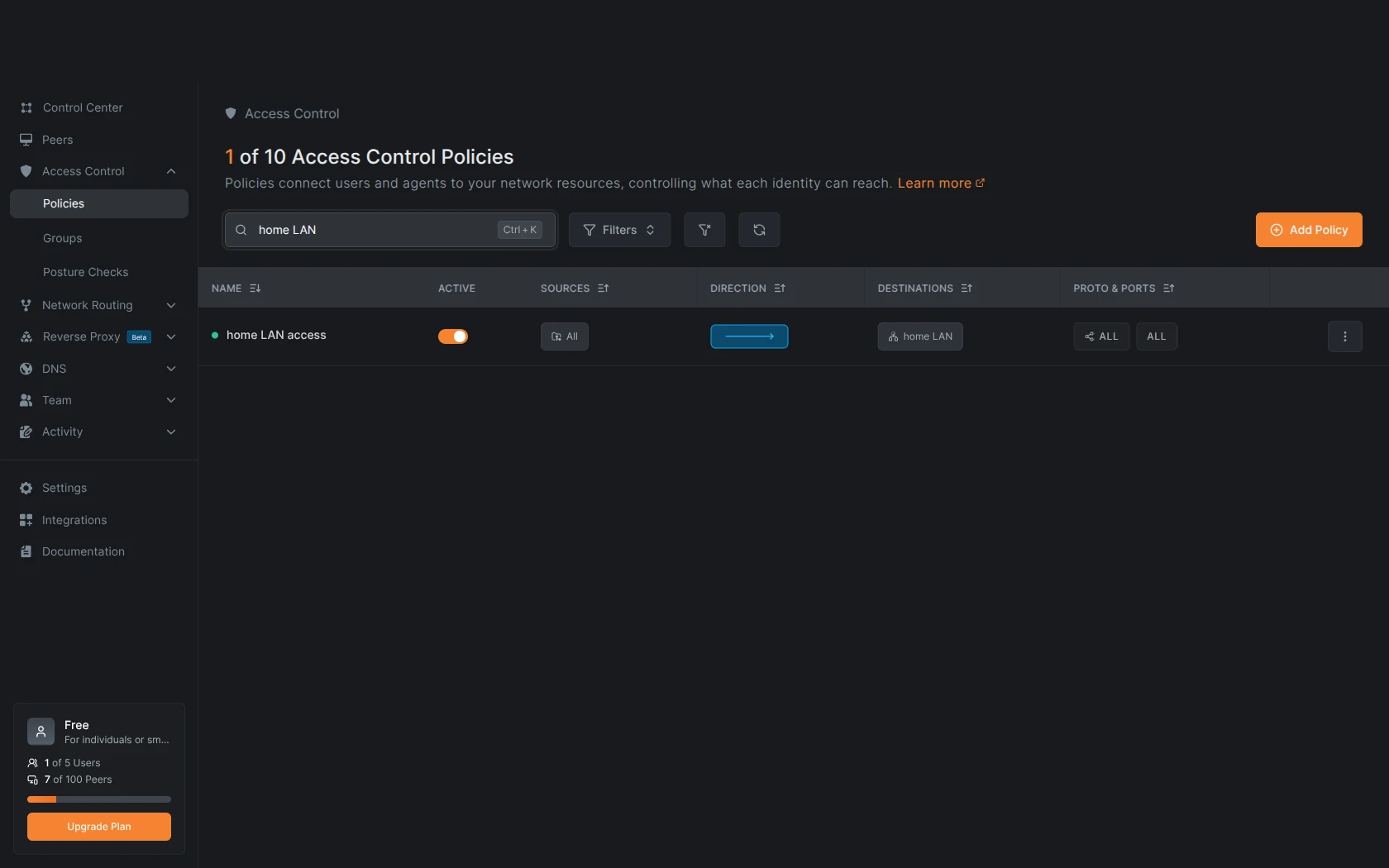
- In the access control step, select Add Policy.
- Set the source to the group your setup key assigns.
- Set the destination to the resource you added.
- Set the protocol to All.
- Select Continue.
- Select Submit.
Make the hub a routing peer
- In Add Routing Peer, pick the hub's peer from the list. Leave Install NetBird alone.
- Select Continue.
- Select Submit.
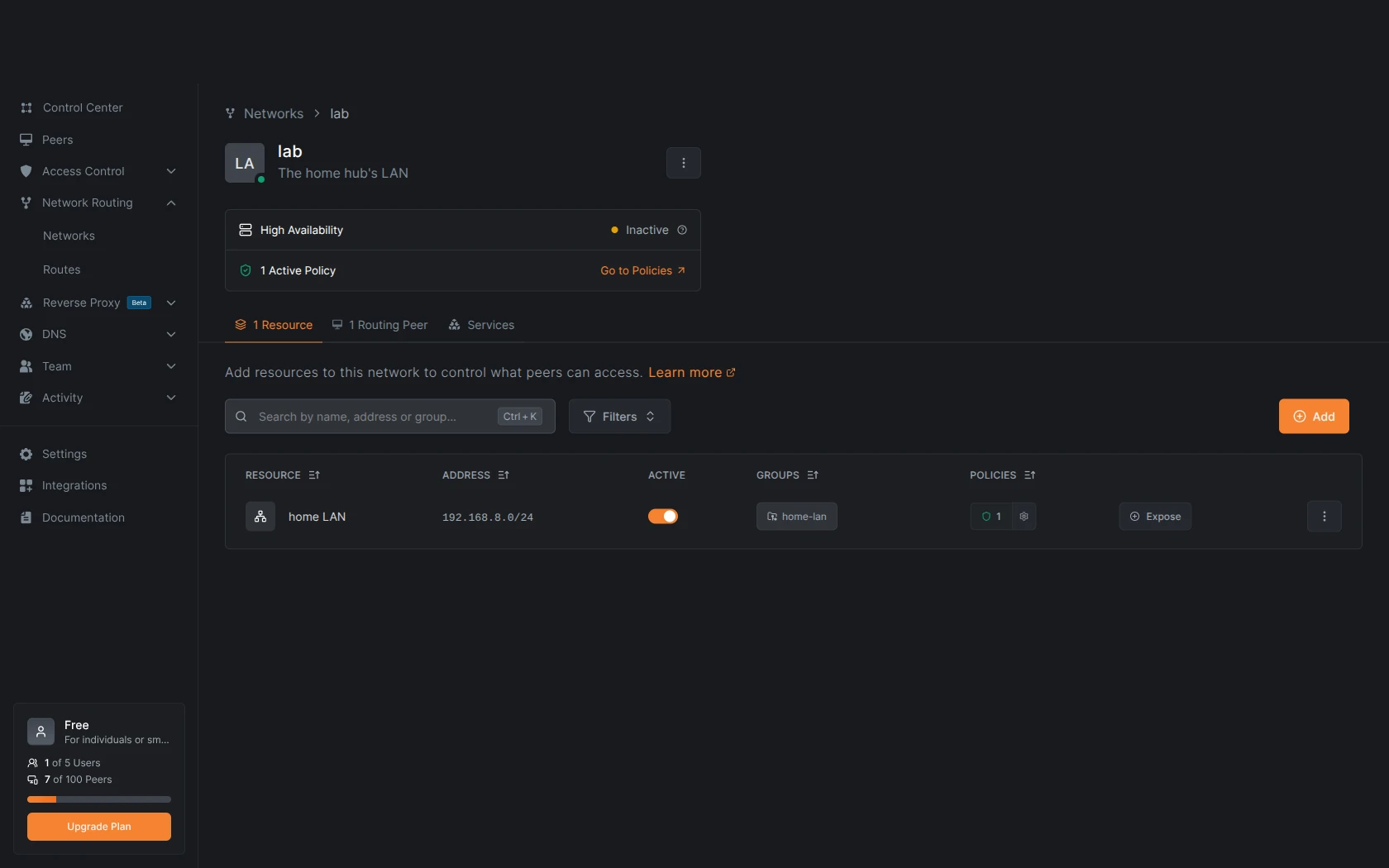
The network's page lists its resource, its routing peer and its policy.
Check from a client
In the desktop client or the Android app, away from home:
- On the Hubs page, find the virtual network line under the hub's row.
- If the line reads Not connected, select Connect. A line that was already connected takes the new route itself.
- In a browser, open the device's LAN address, such as
http://192.168.10.20.
When the device stays unreachable
If the virtual network line reads Connected · with an address and the device does not answer, check the policy in Allow the clients' group. A red line on the Access page names a route problem, and Troubleshooting has its fix.