English
Terminal
A terminal opened from the laptop runs on your home computer, and the phone picks up the same session with its output still scrolling.
Before you start, finish the Step zero with both the phone and the laptop. Each keeps the Terminals permission that every client has by default on the panel's Clients page.
Open a terminal on the laptop
- In the laptop's client window, open Terminals.
- Select your computer in the strip on top.
- Select New terminal.
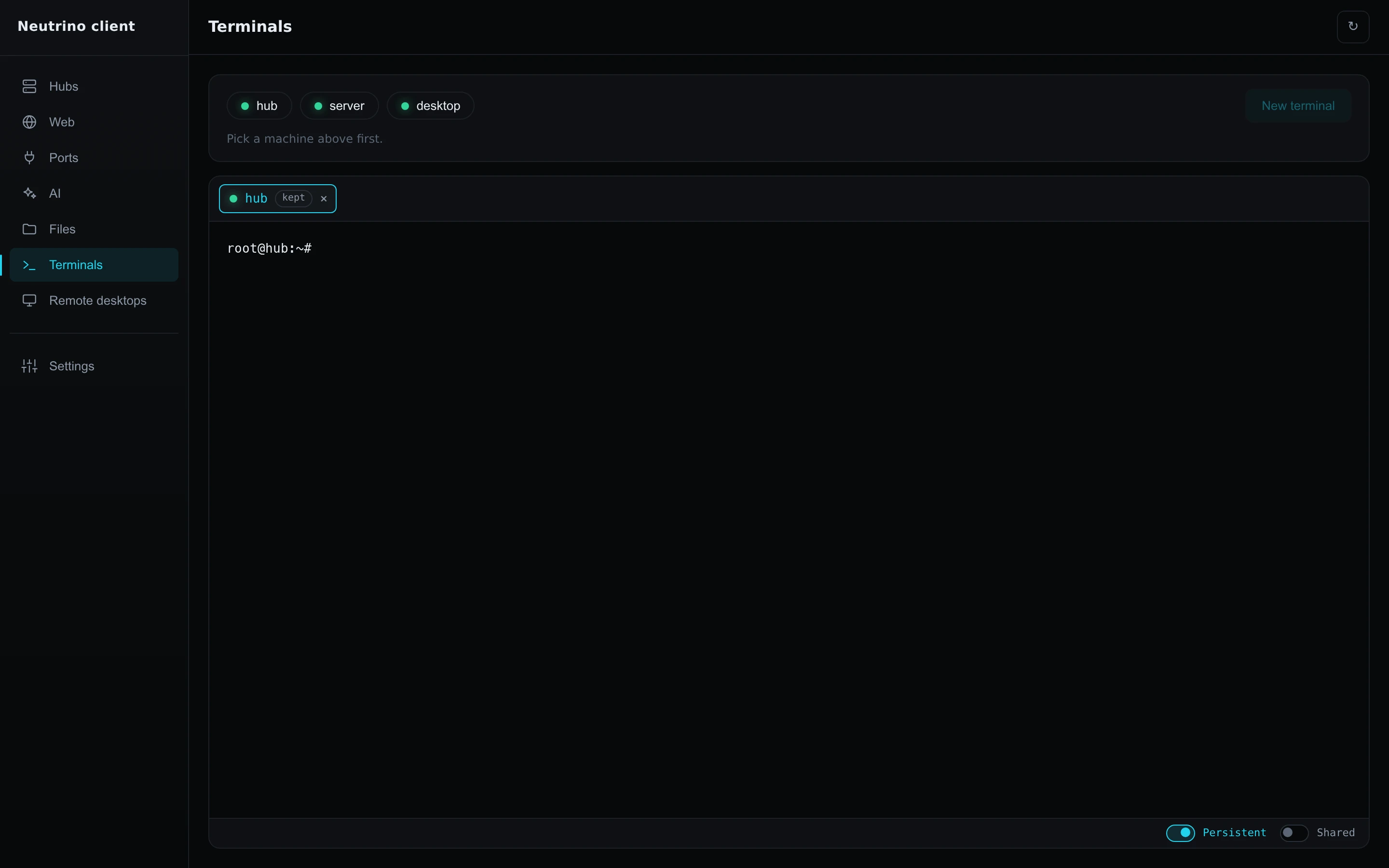
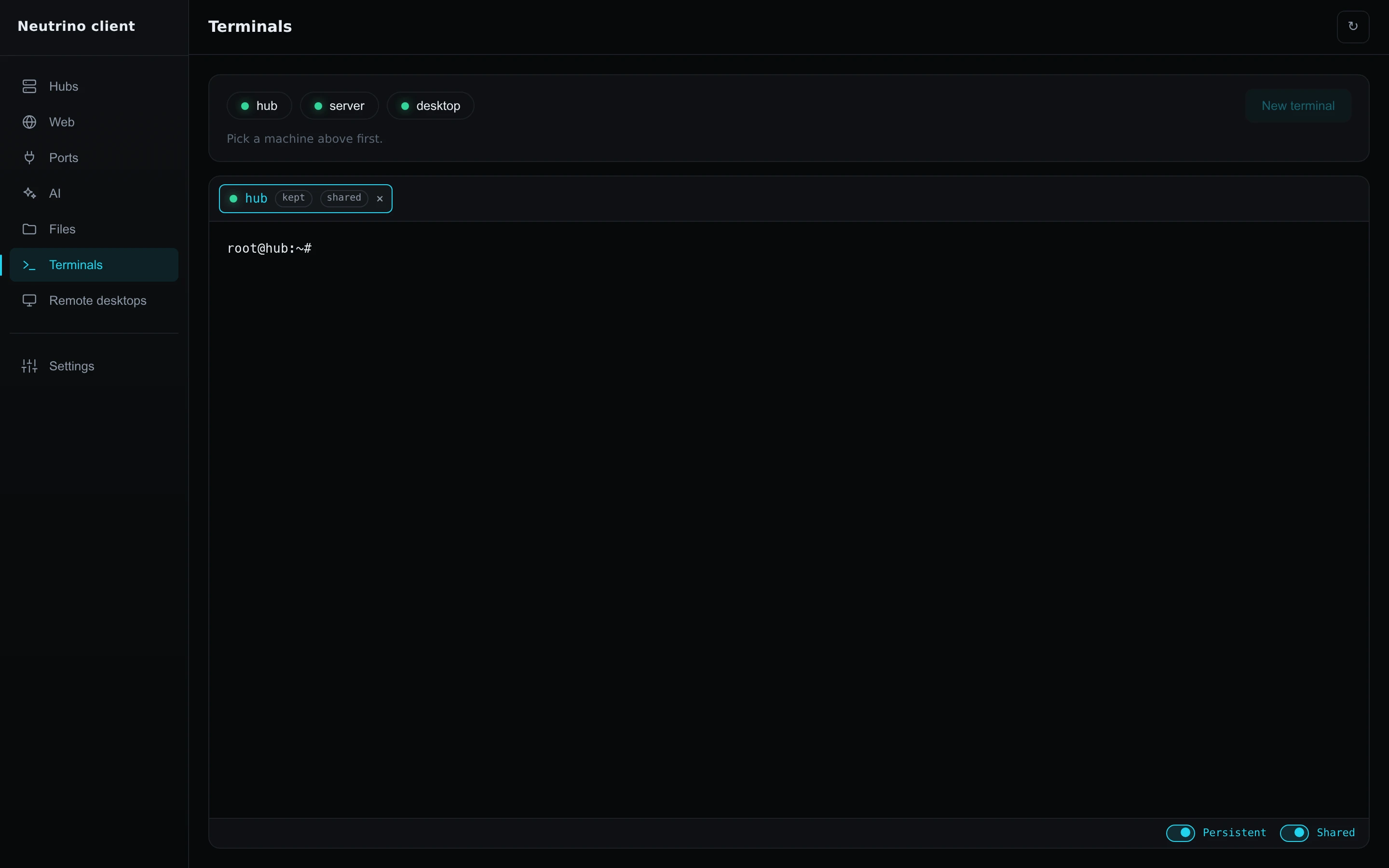
- Under the shell, turn on Persistent and Shared.
- Run a command that keeps printing, such as
ping localhoston Linux and macOS, orping -t localhoston Windows.
The tab shows the kept and shared badges: the session outlives the window, and your other devices see it. The shell runs as root, or as SYSTEM on Windows. To run it as your own account, where your Claude Code is installed, pick that account first as Terminal describes.
Switch to the phone
- Close the laptop's client window. The client keeps running in the tray.
- In the app, open Terminals.
- Select the session's tab.
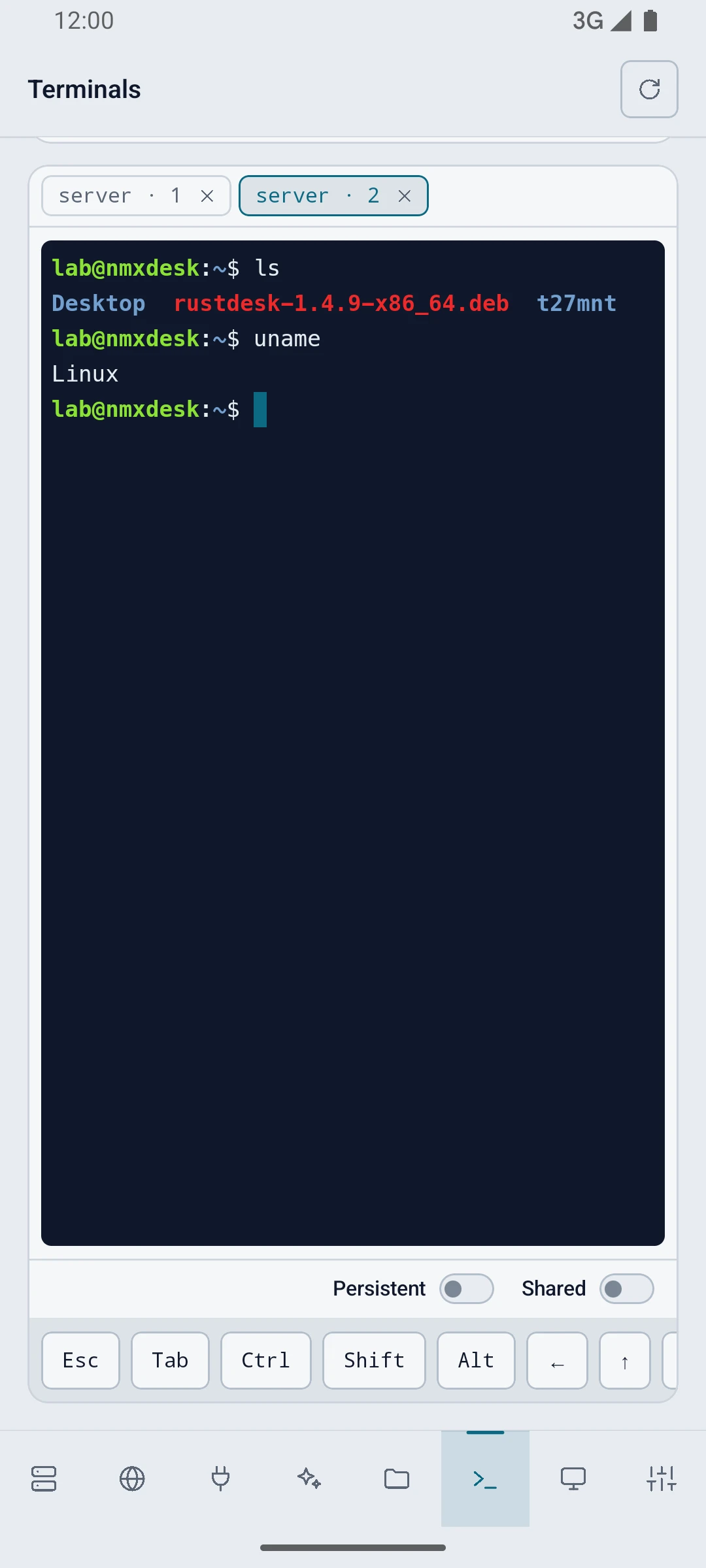
The phone shows the same session, and the command's output keeps scrolling there.
Use it from both devices
- On the laptop, select Open in the client's tray menu.
The laptop's tab and the phone's tab show the same screen, and keys typed on either reach the shell. When a session closes on its own, Troubleshooting names the cause.