
English
Files
On the Files page, the panel browses a managed machine's whole filesystem as root and copies files between that machine and your own computer.
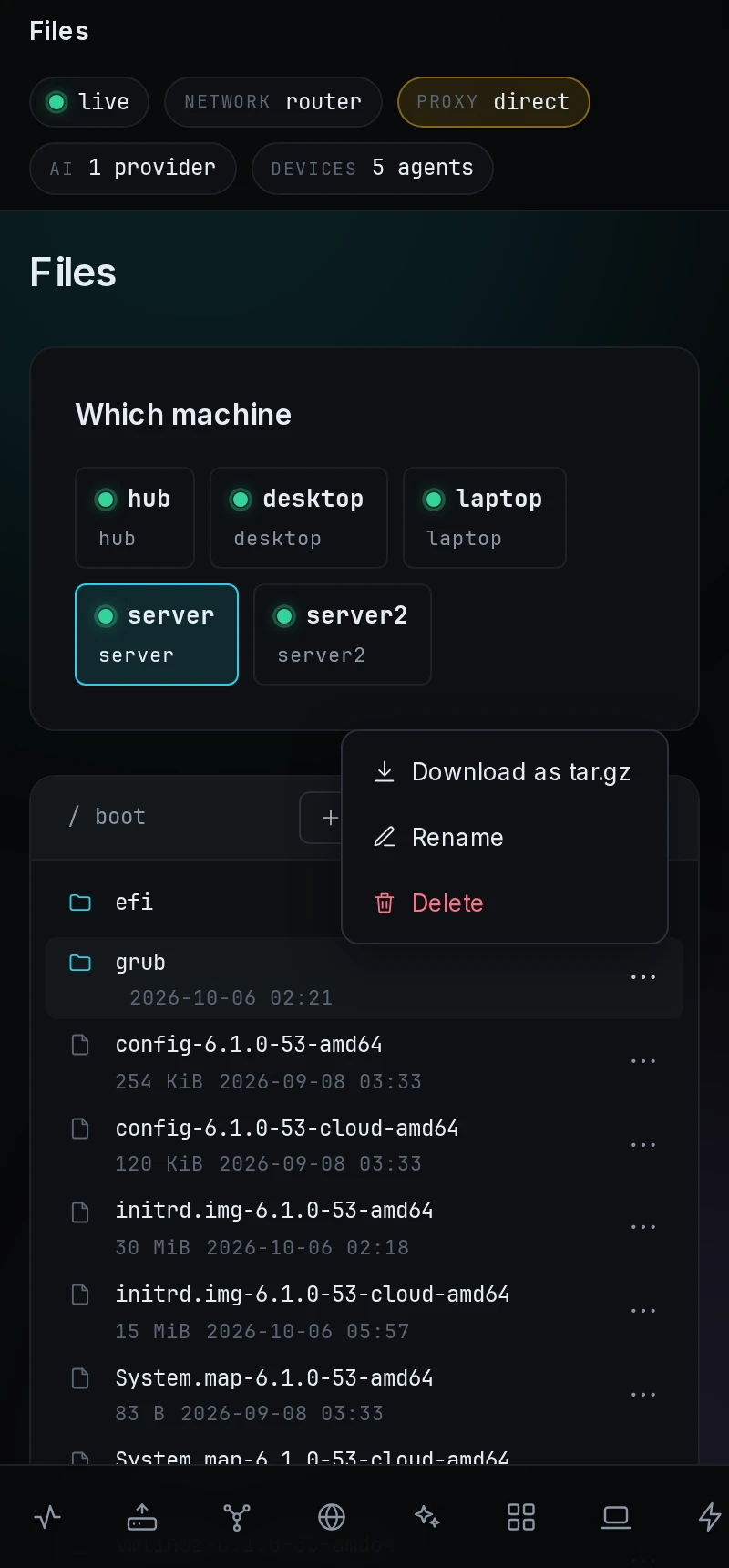
Browse a machine
- Under Which machine, select a machine whose agent is online.
- Select a folder's name to open it.
The browser opens at /. Each part of the path at the top is a button back to that folder. On Windows it opens at Drives, one row per drive such as C:, and the path uses \. The Files button in a device's drawer on Devices opens this page on that machine.
Copy files
- To upload, open the target folder, select Upload and pick the files.
- To download a file, select the download button on its row.
- To download a folder, select Download as tar.gz on its row. A file whose name starts with a dot also arrives as a tar.gz.
A symbolic link opens the folder it points to.
Rename, delete and make folders
- New folder adds a row with a name field; press Enter or select Create.
- Rename turns the name into a field; press Enter, or Escape to keep the old name.
- Delete takes two presses, and the line under the list says that it cannot be undone.
On a touch screen or a narrow window, a row's buttons move behind ⋯ (More actions).
When the machine is offline, the page reads The machine is not answering, so nothing was read or written.