
English
Reach LAN devices without an agent through EasyTier
Through EasyTier, a client away from home opens a LAN device that runs no agent at the device's own LAN address. Such a device is a printer or your router's admin page. In the mainland edition, this is the one route page.
Before you start, check these:
- The hub is on an EasyTier network, as Put the hub on an EasyTier network describes, and a client reaches the hub through EasyTier.
- The hub runs in router or side gateway mode, as Make the hub a router or side gateway describes.
The Settings of the EasyTier card on the Access page show the hub's mode: EasyTier console or Manual bootstrap peers. In console mode, skip the manual mode section; in manual mode, skip the two console sections.
Find the subnet
In router mode, the subnet comes from the LAN interface's Gateway address and Prefix length on the Network page: 192.168.10.1 with 24 gives 192.168.10.0/24. In side gateway mode, it comes from the hub's own address on that LAN: 192.168.1.20/24 gives 192.168.1.0/24.
Add a subnet proxy in the console
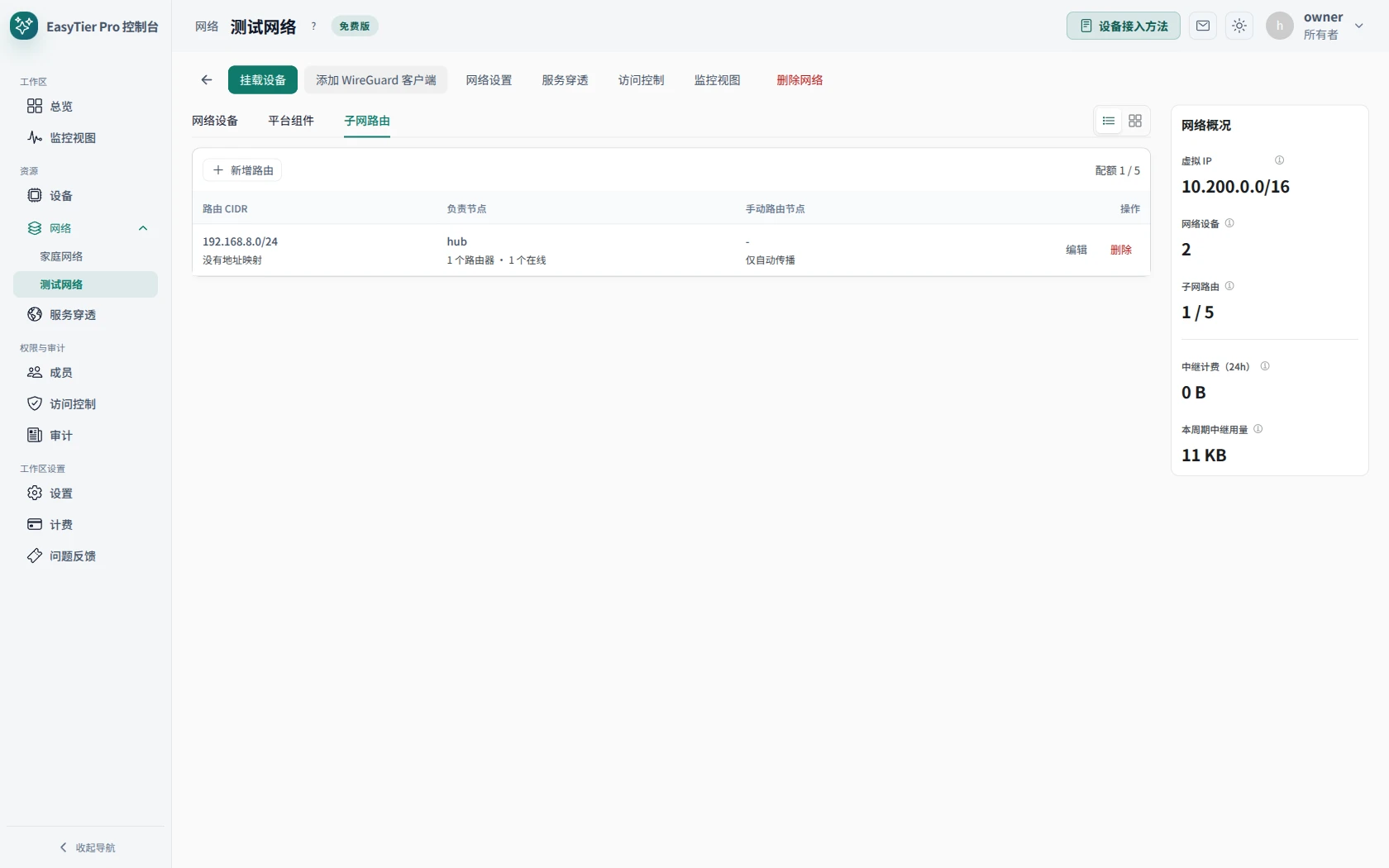
- In the EasyTier console's sidebar, under 网络 (networks), select the hub's network.
- Select the 子网路由 (subnet routes) tab.
- Select 新增路由 (add route).
- Type the subnet in 目标网段 (destination subnet).
- Under 通过哪些节点访问 (through which nodes), pick the hub's device.
- Select 创建路由 (create route).
Read it in the panel
- In the panel, open the Access page.
- Select the EasyTier card.
Under Networks from the console, the network's Subnet routes lists the subnet you added.

In manual mode
- On the Access page, select the EasyTier card.
- Under Exported networks, turn on the subnet.
- Select Apply EasyTier settings. EasyTier restarts, and connections over it drop for a moment.
Check from a client
Each client on the network gets the route from EasyTier. In the desktop client or the Android app, away from home:
- On the Hubs page, find the virtual network line under the hub's row.
- If the line reads Not connected, select Connect. The line reads Connected · followed by the client's EasyTier address.
- In a browser, open the device's LAN address, such as
http://192.168.10.20.
When the device stays unreachable
In console mode, a client line that stays at Connecting… belongs to a device the console has not attached yet. Attach it to the hub's network as Put the hub on an EasyTier network describes. A red line on the Access page, or a code under the client's line, has its fix in Troubleshooting.