
English
Access
The Access page turns on and off each way into the hub from outside your network: Direct, SSH Relay, NetBird and EasyTier. Any set of them runs at once. Choose a way in compares them.
Turn a way in on
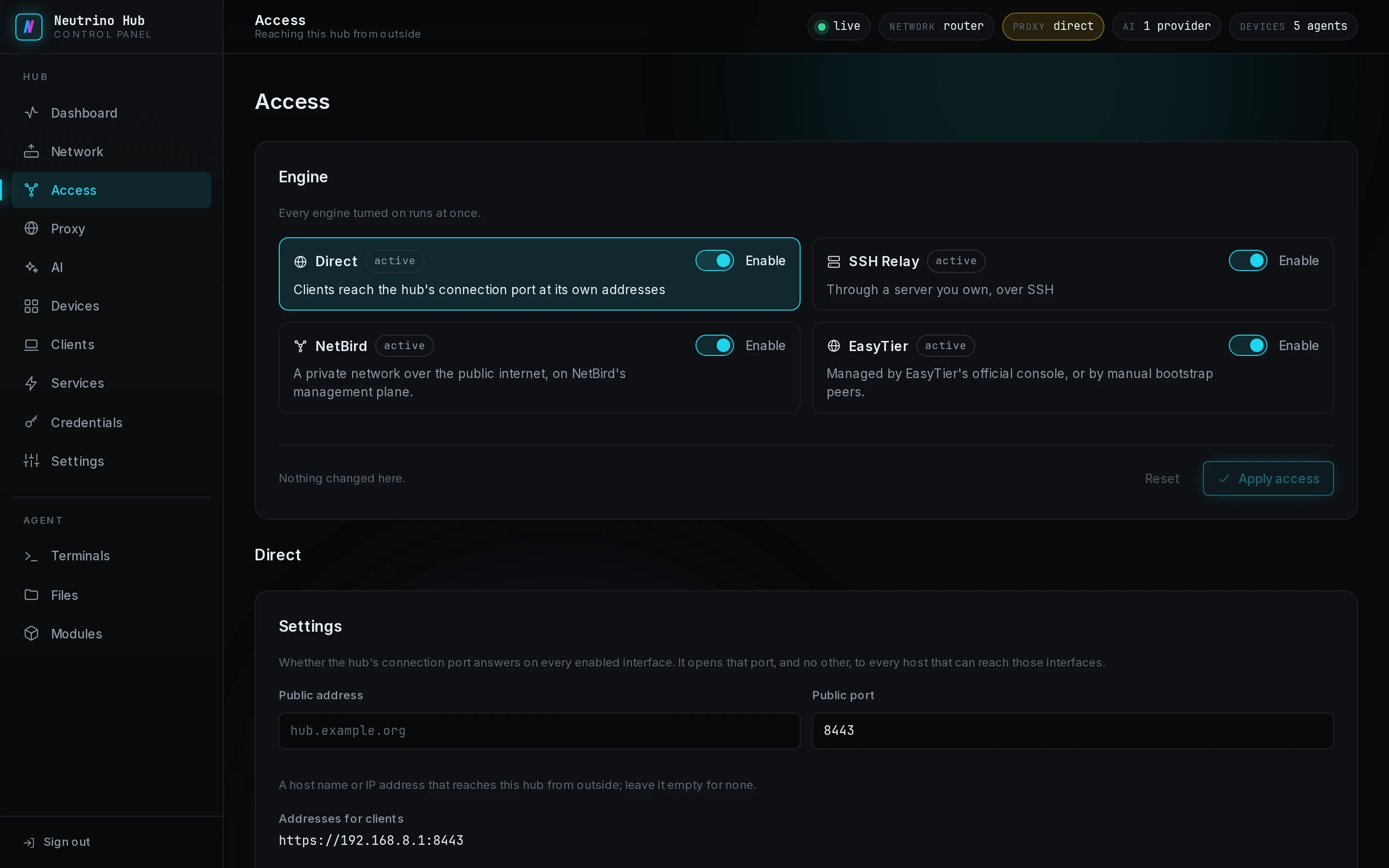
Engine holds four cards: Direct, SSH Relay, NetBird and EasyTier. The mainland edition has no NetBird card.
- On the card, turn on Enable.
- Select Apply access.
A card marked active is running, and its settings appear under the cards when you select it. A card that reads No build for this machine cannot be turned on on this system.
Turn on Direct
Direct opens the hub's port 8443 on every enabled interface, so a client reaches the hub at the hub's own addresses. The panel and the AI gateway keep the exposure the Network page gives them. In router mode an enabled interface is one whose role is not Disabled; in the other modes it is every interface.
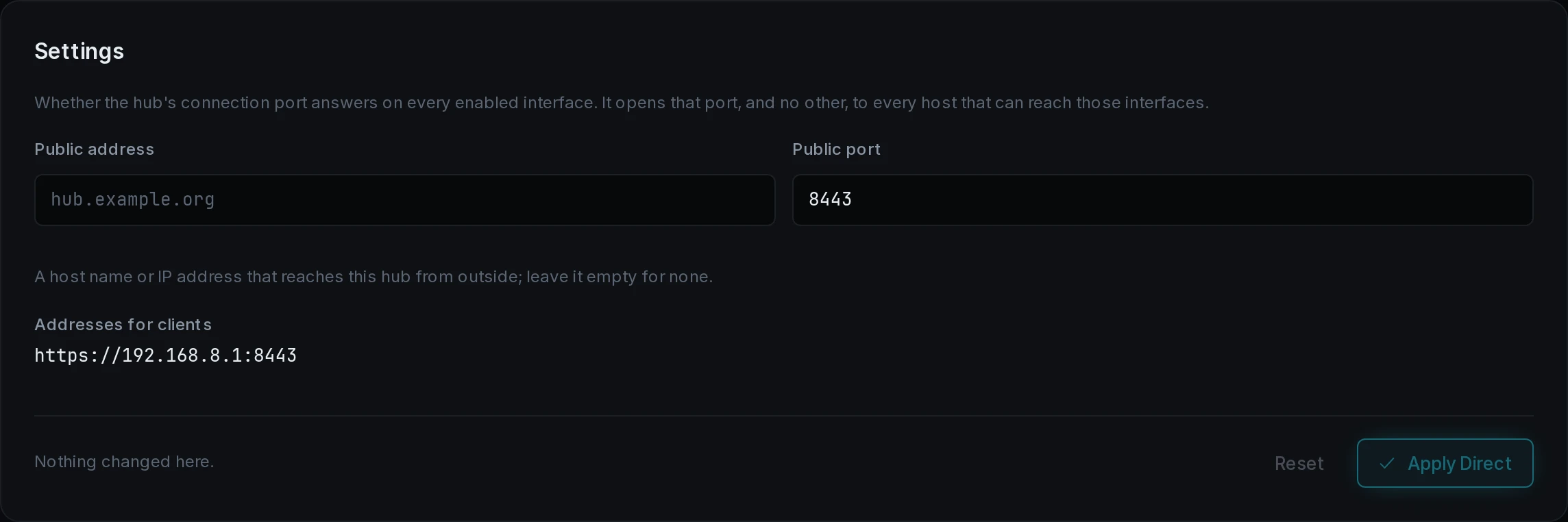
To add an address reachable from outside, such as a port your router forwards to the hub:
- Turn on Direct and select Apply access.
- Under the cards, fill Public address with a host name or IP address, and Public port with its port.
- Select Apply Direct.
Addresses for clients lists the addresses Direct gives clients and agents: each enabled interface's address that Exposure does not already open, then the public address. A stable IPv6 address counts too.
Set up the other ways in
Each of the other ways in has its own page:
- SSH Relay: a server you rent or own forwards one public port to the hub, as in Reach the hub through your own VPS. SSH Relay explains its status and settings.
- NetBird: the hub joins a NetBird network with a setup key, as in Join the hub to NetBird.
- EasyTier: the hub joins an EasyTier network from its console or by name and secret, as in Put the hub on an EasyTier network.
Run several at once
Turn on each card and select Apply access. Each way in keeps its own settings, peers and clients. The hub keeps the overlays apart:
- It rejects an overlay whose network overlaps another overlay's network or one of the box's own networks.
- It drops packets that enter on one overlay and leave by the other.
- A route an overlay installs that overlaps another network appears in red at the top of the page.
- It deletes a default route through an overlay and keeps its own uplink.
A client uses whichever way in reaches the hub.
Turn a way in off
- On the card, turn off Enable.
- Read the warning in the apply bar.
- Select Apply access.

The warning counts the online clients connected through that way in. Its settings stay stored, and turning it on again starts it with the same settings. A client that came in through it comes back through another way in that reaches the hub.
Read the peers and the topology
The NetBird and EasyTier sections end with Peers, read again every five seconds. A row shows the peer's name, its overlay address, whether the link is direct or relayed, its latency and its bytes. NetBird adds the time since the last handshake, and EasyTier adds the protocol and the share of packets lost.
An empty NetBird table reads No peers yet. Log in on another device with the NetBird app. An empty EasyTier table reads No machine has joined yet.
Topology draws the box, its LANs and its peers after the box joins a network. Exposure on the Network page sets whether the box answers its own services on an overlay.
When the hub rejects a setting on this page, the code is on Troubleshooting.