
English
Put the hub on an EasyTier network
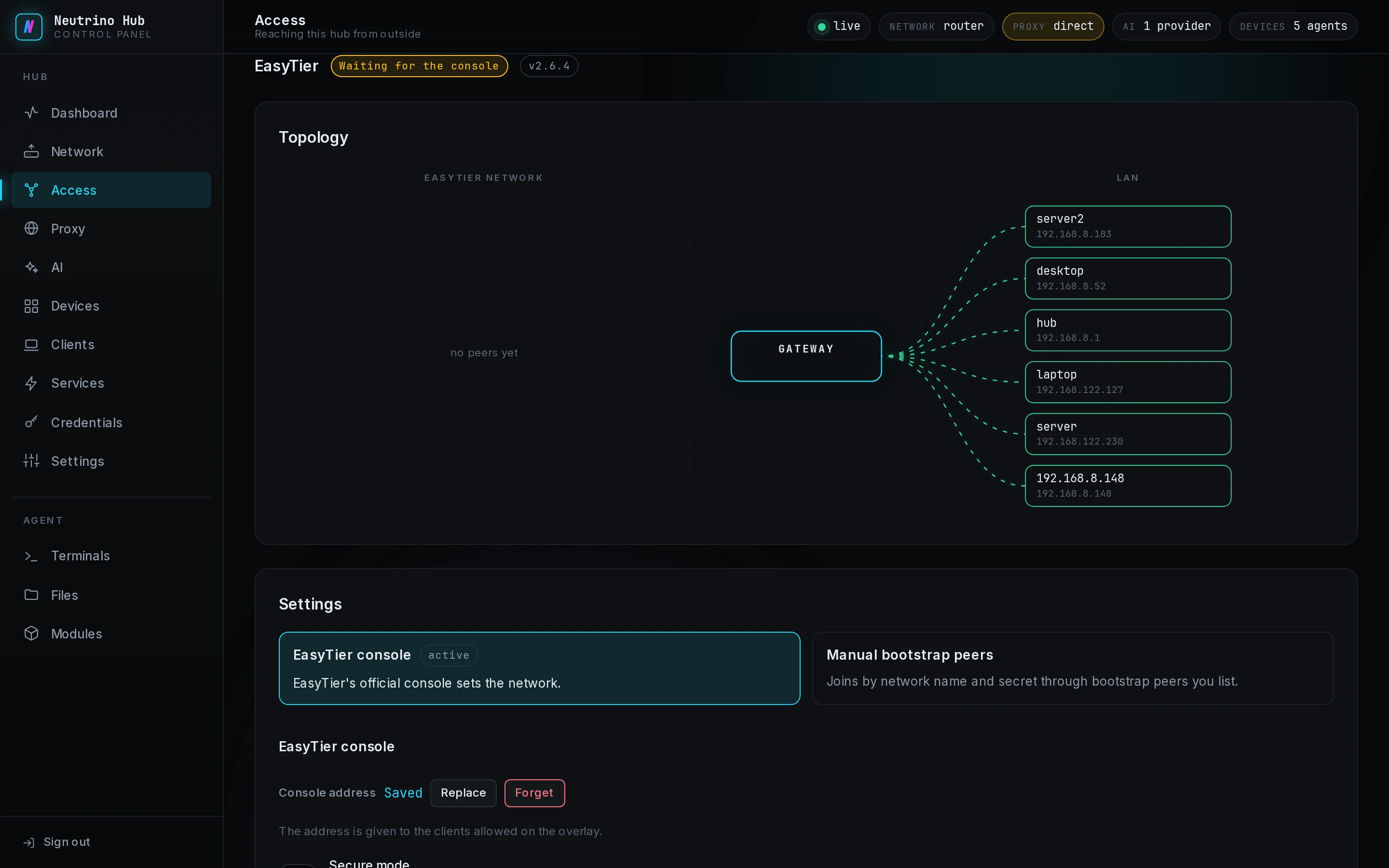
An EasyTier network is a network name and a secret, and every machine holding both is on it. Both editions include EasyTier. Before you start, turn on the EasyTier card on the Access page, select Apply access, and select the card to open its Settings.
Pick where the network comes from
Settings offers two modes, and Apply EasyTier settings applies the whole section:
- With an account on the EasyTier console, choose EasyTier console. The console sets the network, the hub's address and its routes.
- Without one, choose Manual bootstrap peers. The hub holds the network's name and secret, and every machine must reach its port 11010.
Attach the hub in the console
The console is in Chinese, and the labels here are as it shows them.
Copy the console address
- In the EasyTier console at
https://console.easytier.net, select 设备接入方法 (how to connect a device) at the top right. - Select the 开源版接入 (open-source edition) tab.
- Under 连接 EasyTier, pick a key in 接入秘钥 (access key).
- In the command shown, copy the whole address after
--config-server.
Register the hub
- Under Settings, select EasyTier console.
- Paste the address into Console address.
- Leave Secure mode off, as Step zero does; the console's own join command turns it on, and the hub registers either way.
- Select Apply EasyTier settings.
The section reads Waiting for the console.
Create the network for the hub
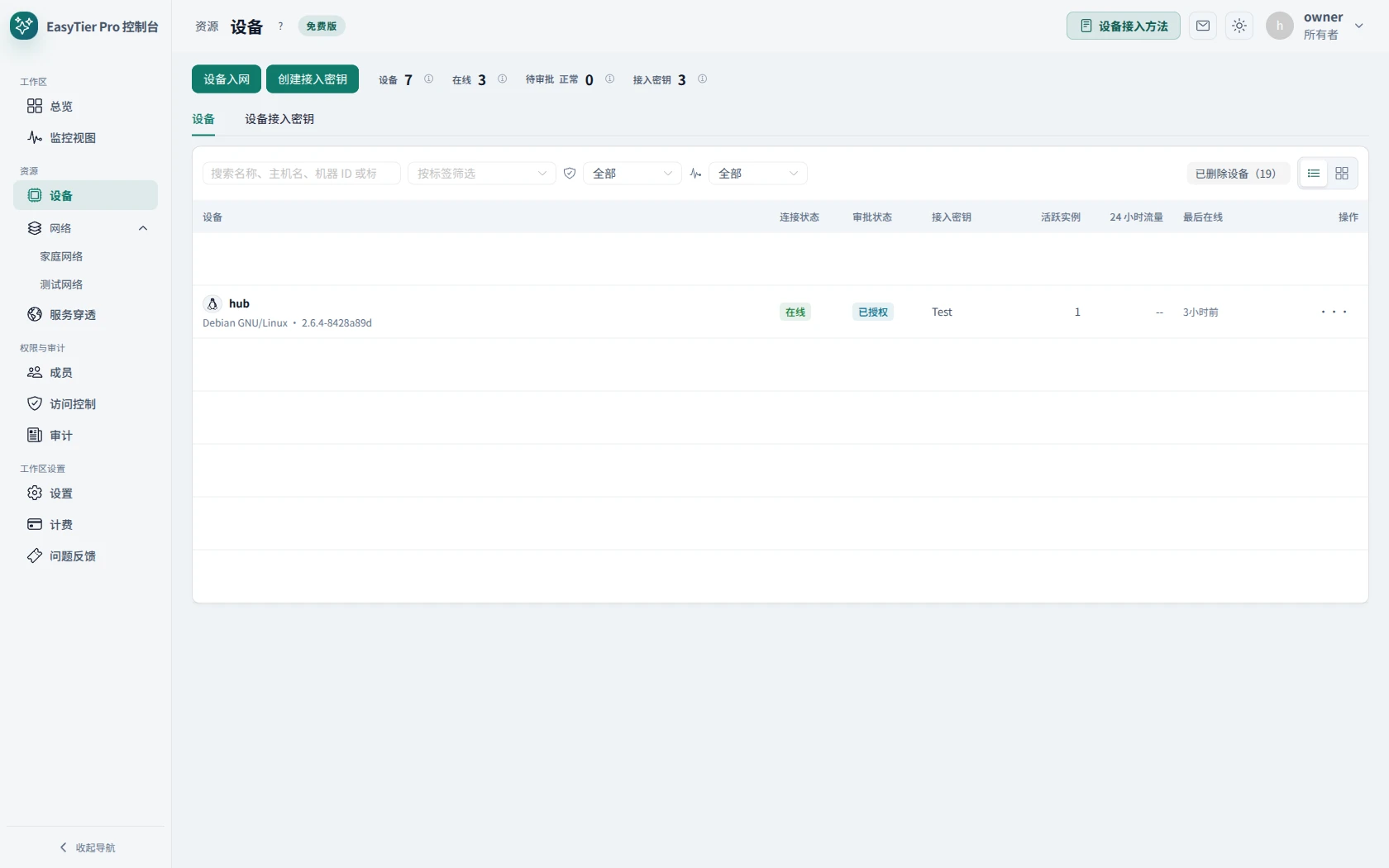
The hub now appears on the console's 设备 (devices) page.
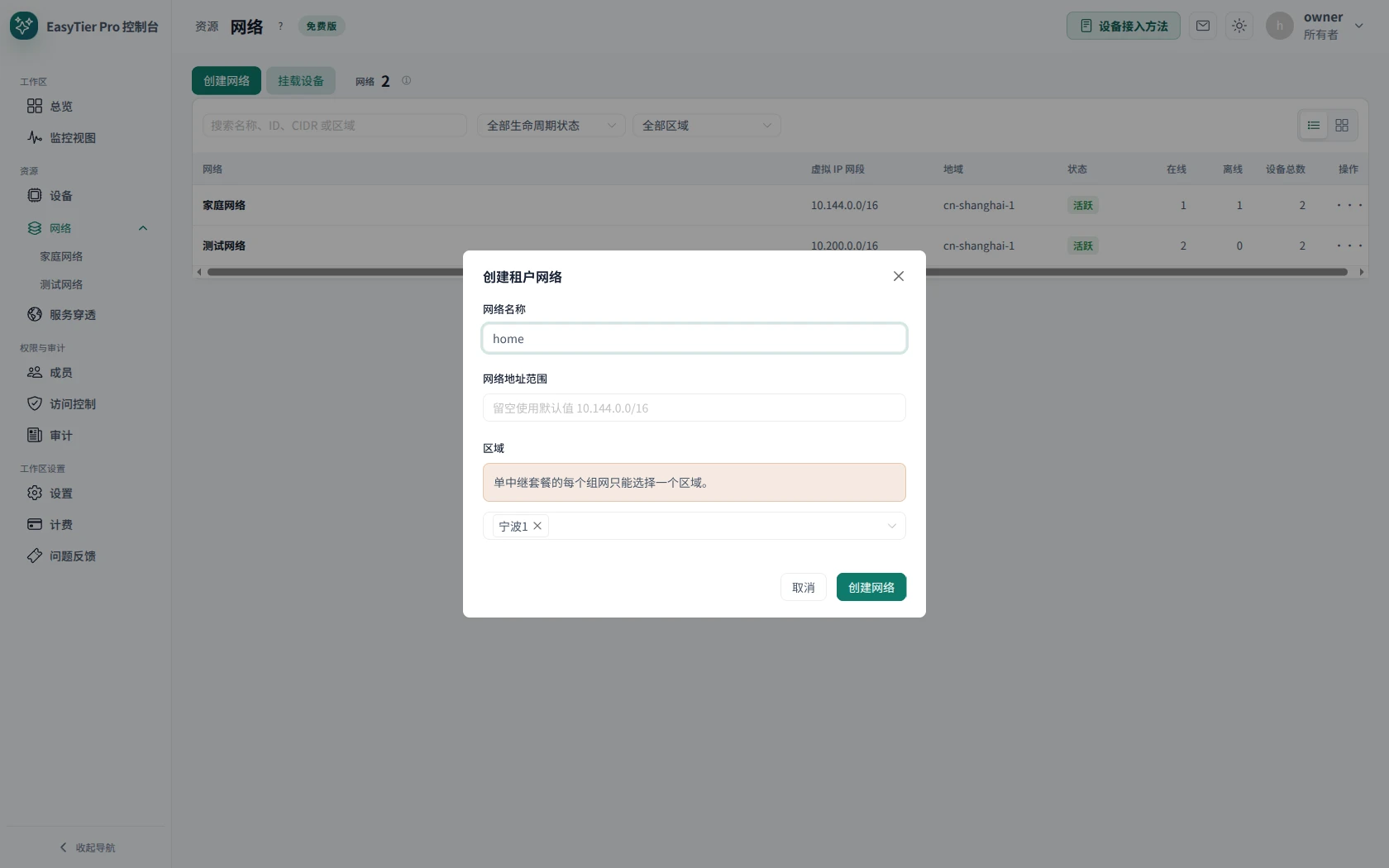
- In the console's sidebar, open 网络 (networks).
- Select 创建网络 (create network).
- Type a 网络名称 (network name), and select 创建网络 at the bottom of the dialog.
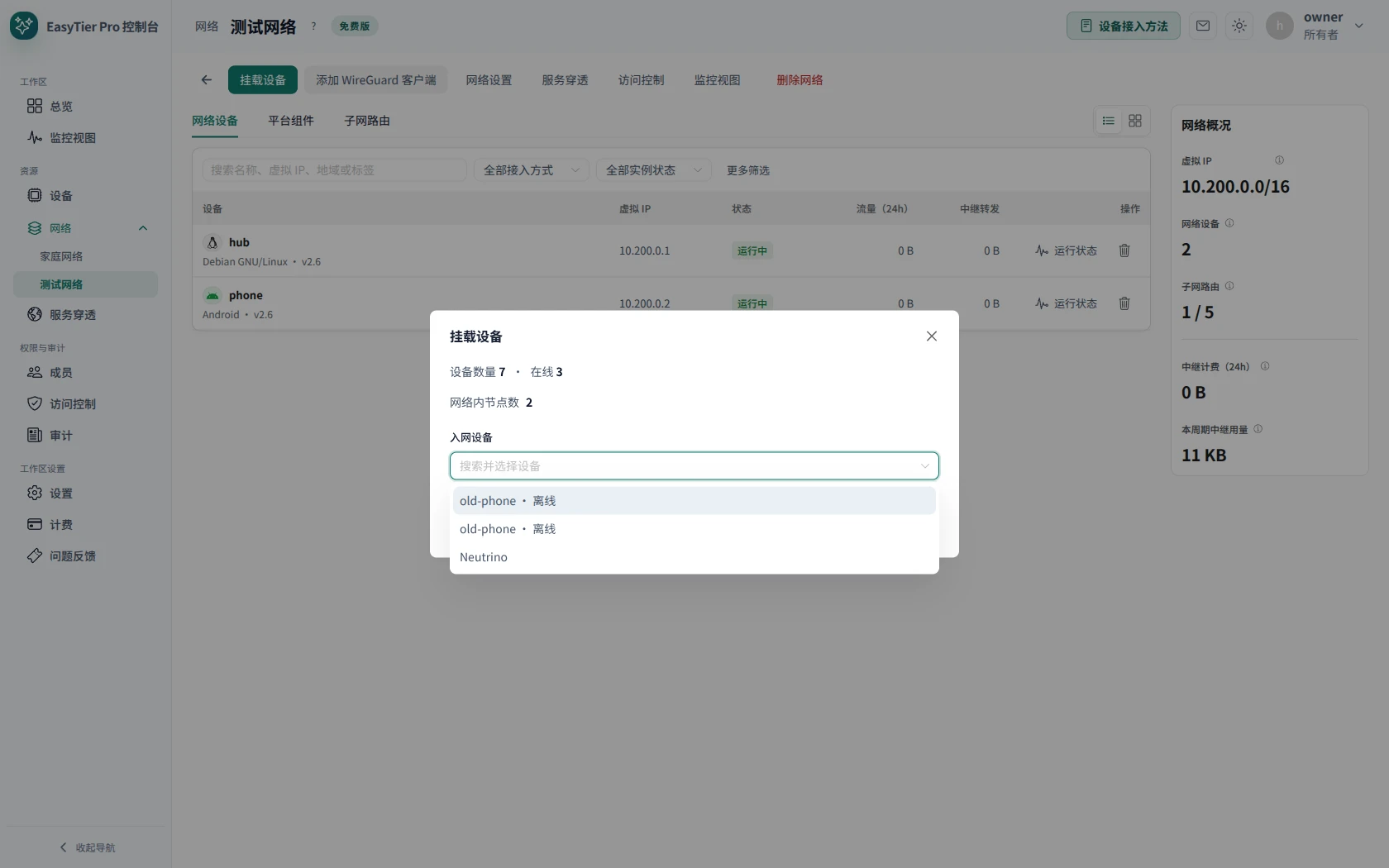
- Select the network's name to open its page.
- Select 挂载设备 (attach device).
- Under 入网设备 (devices to join), pick the hub.
- Select 加入网络 (join network).
The hub's row on the network's page reads 运行中 (running) after a moment. The badge reads no peers yet while the hub is alone on the network, and connected when another device on it is reachable. Networks from the console shows each network, the hub's address on it and its Subnet routes.

Attach each client
In console mode a client that connects to the virtual network registers with the console, and its row reads Connecting…. In the console, open the hub's network, select 挂载设备, pick the client under 入网设备 and select 加入网络. The client's row then reads Connected.
Export the LANs
To reach the LAN devices behind the hub, follow LAN devices over EasyTier.
Manual bootstrap peers
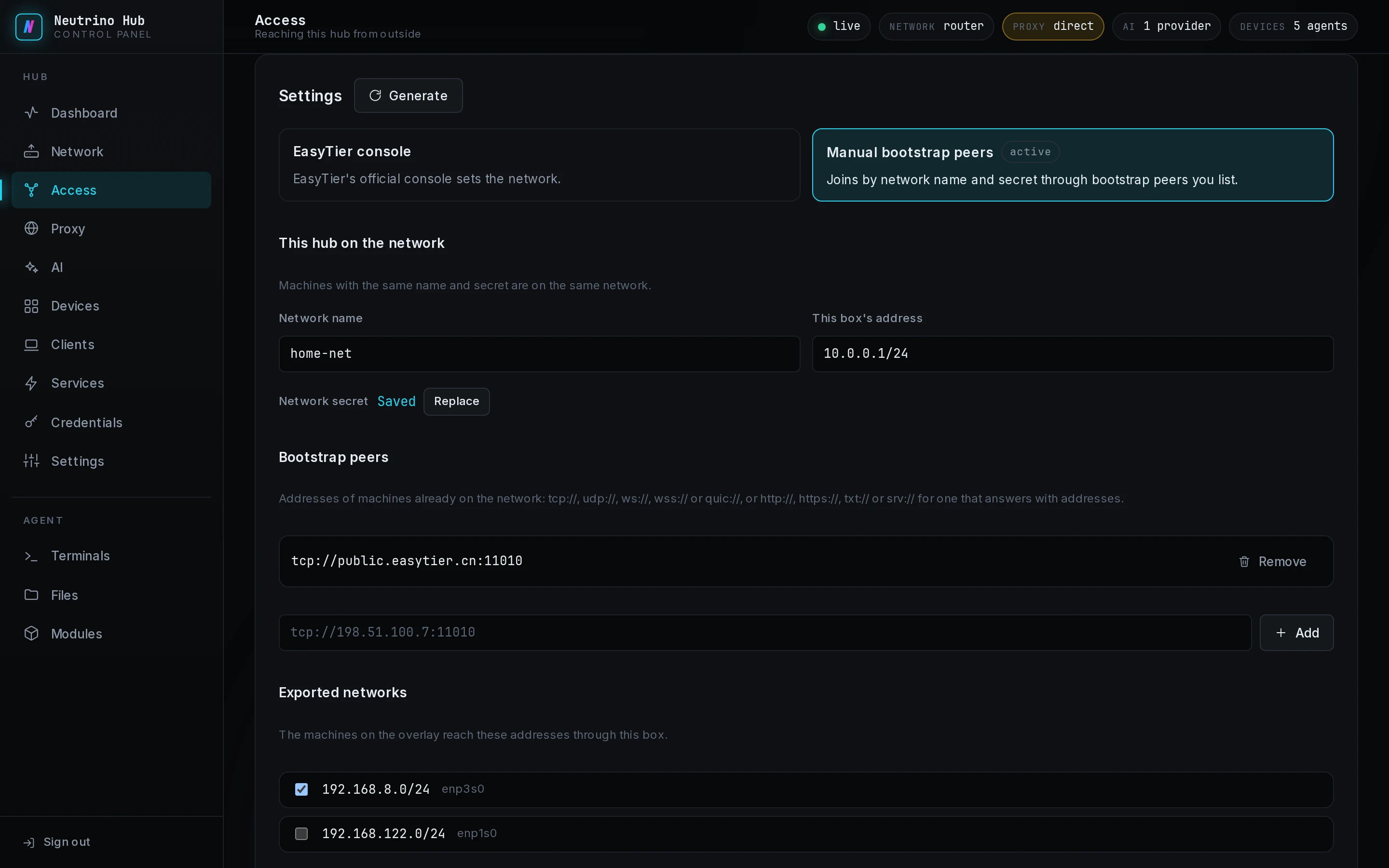
- Under Settings, select Manual bootstrap peers.
- Select Generate. Network name, Network secret and This box's address fill in.
- Under Bootstrap peers, add the address of a machine on the network, such as
tcp://198.51.100.7:11010. - Optional: under Exported networks, add each LAN that overlay machines reach through this box.
- Select Apply EasyTier settings.
Each client receives the hub's uplink address with port 11010 as its bootstrap peer. A client away from home needs that port open from outside, over TCP and UDP.
WARNING
A different secret is a different network. Every other machine stays on the old network until its secret changes too.
Commands for another machine shows two command lines, and Copy with the secret copies one with the real secret. In them, <network-name> and <secret> are the network's pair, and <hub-address> is the hub's address.
The first line joins a machine to this network through the hub:
bash
easytier-core -d --network-name <network-name> --network-secret <secret> -p tcp://<hub-address>:11010The second runs a bootstrap peer of your own on a machine with a public address:
bash
easytier-core --private-mode true --network-name <network-name> --network-secret <secret> \
  --relay-network-whitelist <network-name> -l tcp://0.0.0.0:11010 -l udp://0.0.0.0:11010
When the hub rejects these settings, the code is on Troubleshooting.